User Manual · Version 2026-10-13
Elastic OSC User Manual
The complete guide to Elastic OSC, the playful 8-voice polyphonic macro-oscillator synth for macOS, Windows, iOS and Android, based on Mutable Instruments Plaits: all 24 synthesis engines, the effects, automation, LFOs, MPE and settings.























Introduction
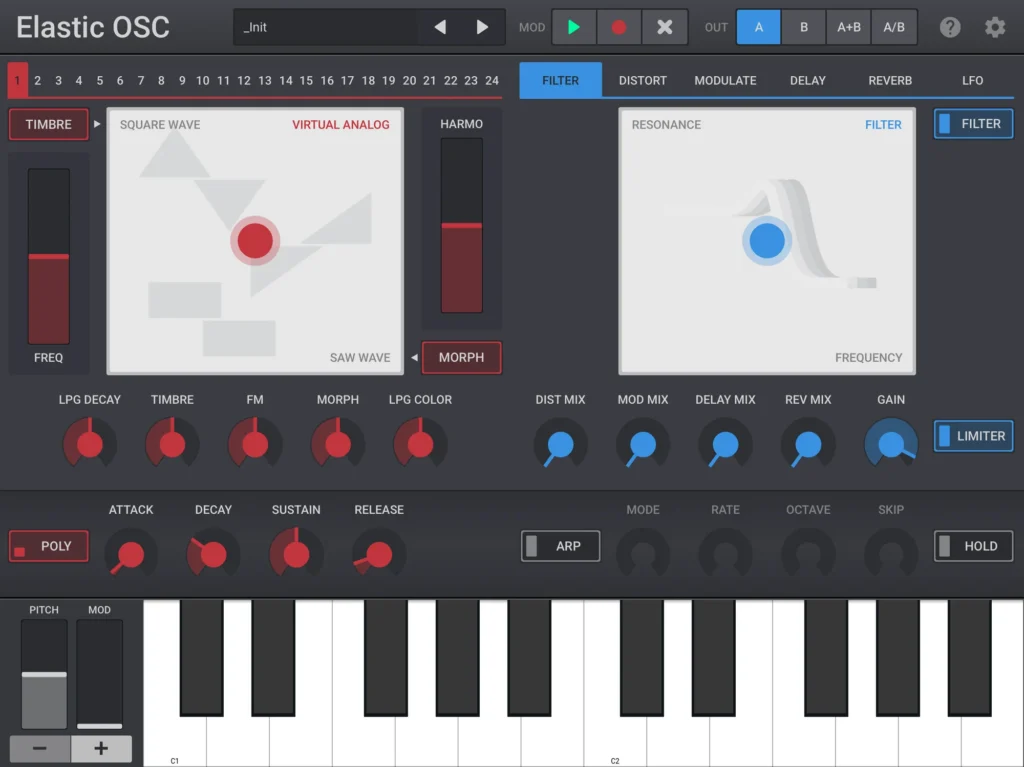
Elastic OSC is an 8 voices polyphonic macro-oscillator synthesizer based on the source code of Mutable Instruments Plaits1. Its core idea: powerful sound design, reduced to just four main parameters: Frequency, Harmonics, Morph, and Timbre.
In Elastic OSC, these four core parameters get mapped to an expressive XY pad, enabling fast and intuitive sound exploration. The sound is then shaped further by a low-pass gate. A second XY pad provides direct control over the built-in effects, making sound design immediate, and playful.
In-app automation over 1–4 bar loops is described in Modulation 1: Automation. Per-note expression via MPE is covered in Modulation 3: MPE.
Elastic OSC is available as an AUv3 plugin for iOS and as a VST3 and AUv2 plugin for desktop. It also comes as a standalone app for iOS and Android.
Features
- 24 synthesis engines, each with its own sound and behavior
- In-app modulation recording and playback
- Low-pass gate and internal envelopes for detailed shaping of a sound’s attack
- Effects chain: Filter, Distortion, Chorus/Phaser, Delay, Reverb
- Four LFOs with per-parameter modulation depth
- LFO mixer for quickly creating rich and expressive modulation routings
- Arpeggiator with different modes and speeds
- MPE support, mapping Glide, Slide, and Press to synthesis parameters
- Preset manager with tags, search, and import/export/share options
- Bluetooth MIDI pairing in the standalone app
- Ableton Link (iOS only)
1 Which was generously made open-sourced by Mutable Instruments mastermind Émilie Gillet.
Header bar
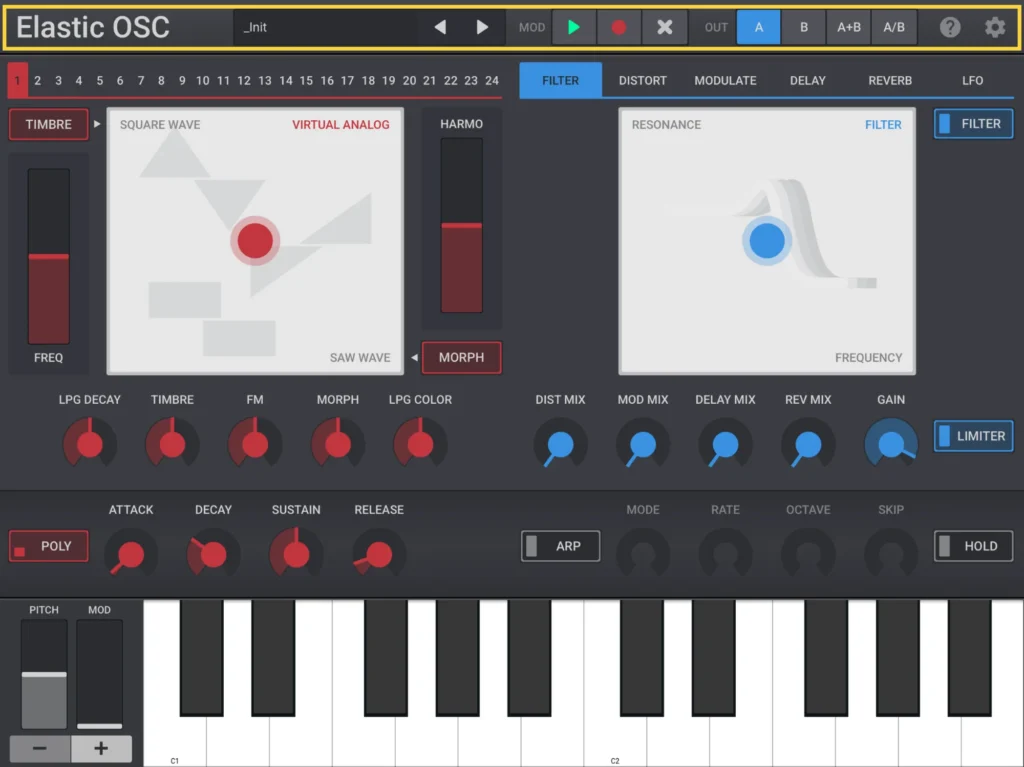
The header bar is visible on every screen. It contains the preset selector, modulation recording controls, output routing options, help, and settings.
About

Selecting the app name opens the About screen.
Preset selector

Shows the name of the current preset. Selecting it opens the preset manager, described in Preset manager. The Prev and Next arrows step through presets one at a time without opening the manager.
Modulation recording controls

The MOD controls record, play back, and clear in-app automation. See Modulation 1: Automation.
Output routing

Selects which of Plaits’ outputs are sent to the speakers.
A is the standard output.
B is a variation output, called AUX in the original Plaits module.
A+B mixes both outputs together.
A/B mixes both outputs and pans them hard left and right.
Help button

Turns help mode on or off. While it is on, selecting a control shows a short description of that control. To turn off help mode, select the button again.
Settings gear

Opens Settings.
Preset manager
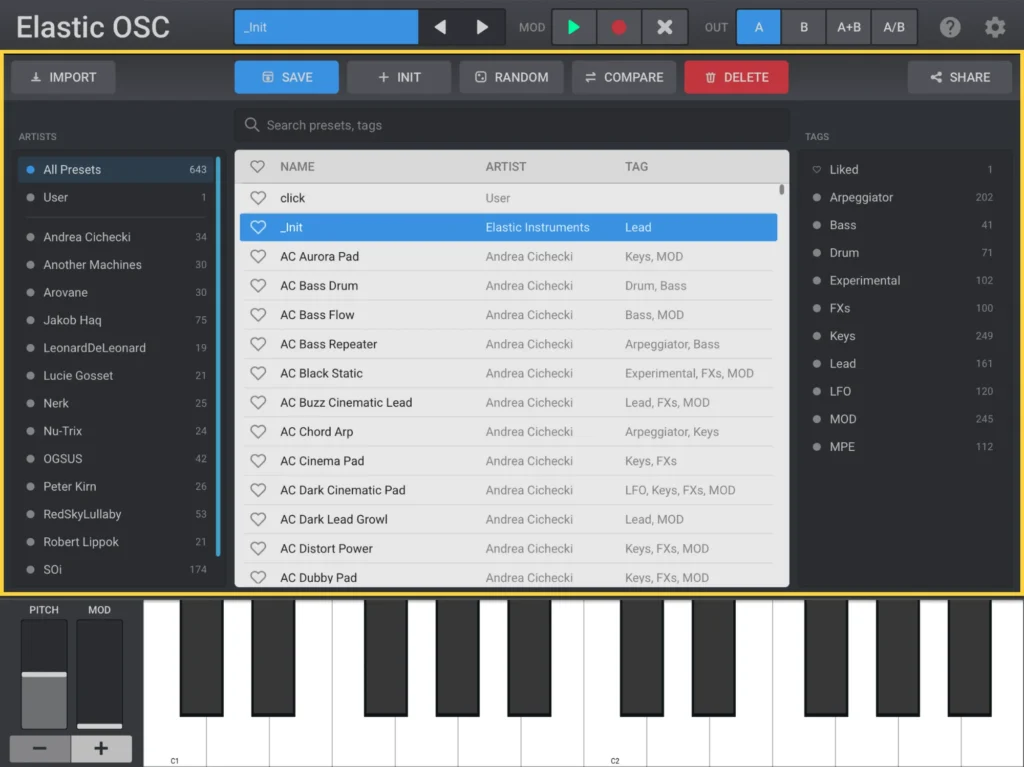
The preset manager lists the factory and user presets. Presets are loaded, saved, deleted, imported and shared here. Search and filtering are described below.
The preset manager can be opened by clicking or tapping the preset selector in the header bar.
Preset manager header

Import loads one or more preset files from the device.
Save stores the preset under a name you choose, and lets you attach tags to it for filtering later.
Init resets the current sound to an initialized, blank preset. When a wavetable engine or an FM engine is selected, the button is relabeled WAVETABLE or DX7 Bank to match, and loads a wavetable file or an FM patch bank for that engine instead.
Random randomizes most parameters in a preset.
Compare switches between the current sound and the sound as it was when the preset was loaded. This makes it possible to audition your changes against the original.
Delete deletes the currently selected preset. Factory presets cannot be deleted.
Share exports the selected preset to a file, or passes it to the operating system’s share sheet: AirDrop and Mail on iOS, or Drive, Mail and Bluetooth on Android.
Preset search
The preset list can be filtered by name, artist or tag.
Preset list
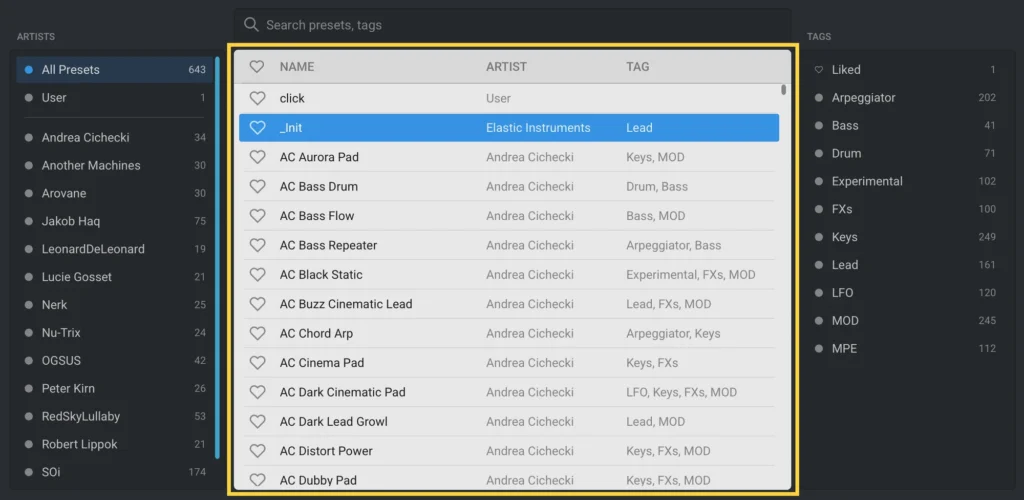
The preset list shows each preset with its name, artist, and tags. Select the heart icon next to a preset to mark it as Liked.
Search field
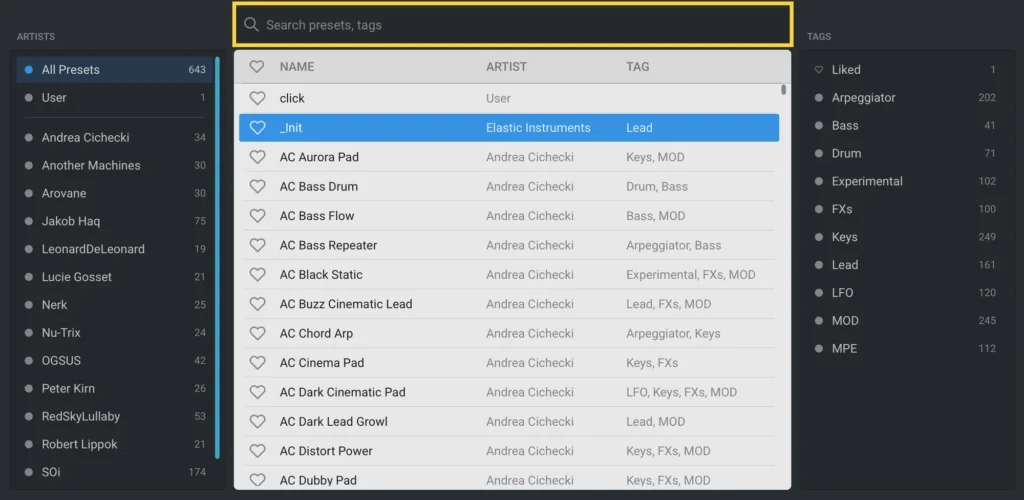
Typing in the search field filters the preset list by name and tag.
Artist filter
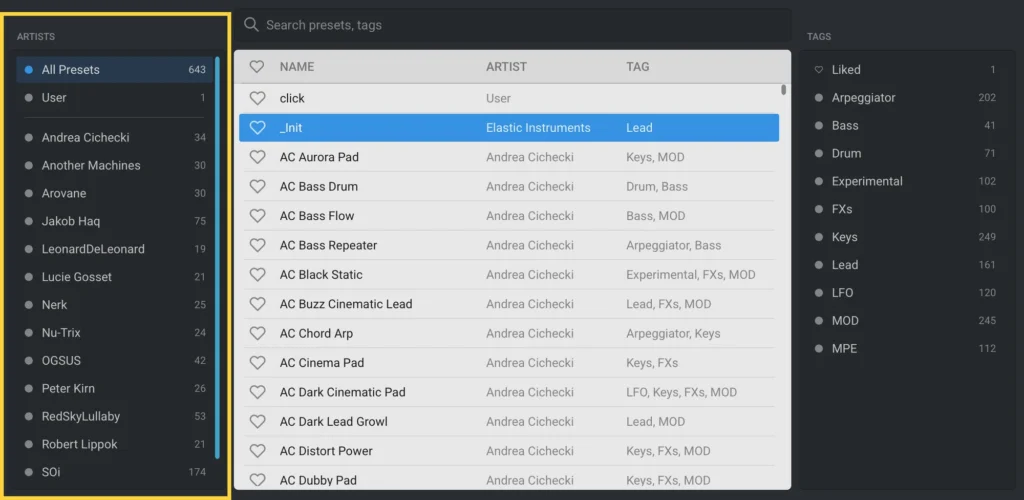
Selecting an artist filters the preset list down to that artist’s presets. Select All Presets to clear the filter. Select User to list all presets created by the current user.
Tag filter
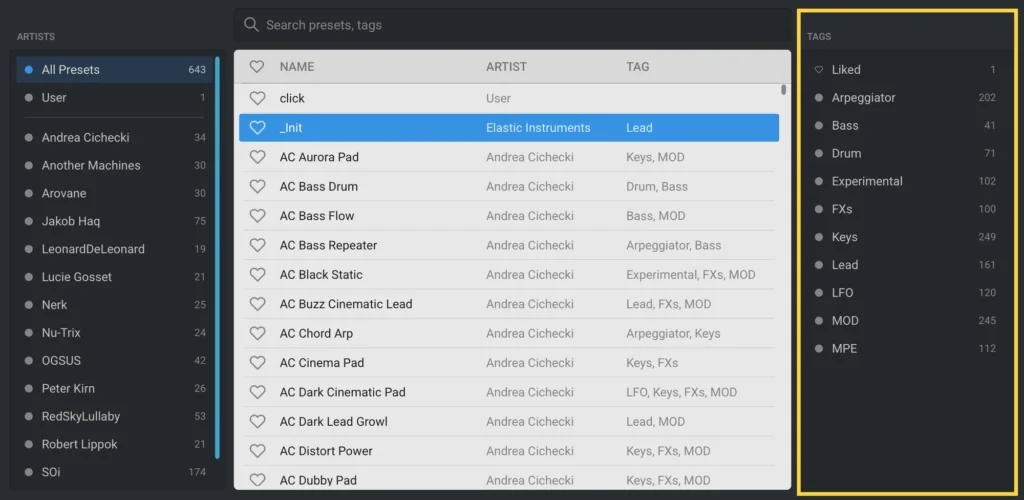
Lists Liked at the top, followed by every tag currently in use, each with a count of matching presets. Selecting a tag filters the preset list down to that tag. Tags can be combined, for example to filter presets that are tagged both LFO and MPE.
Oscillator
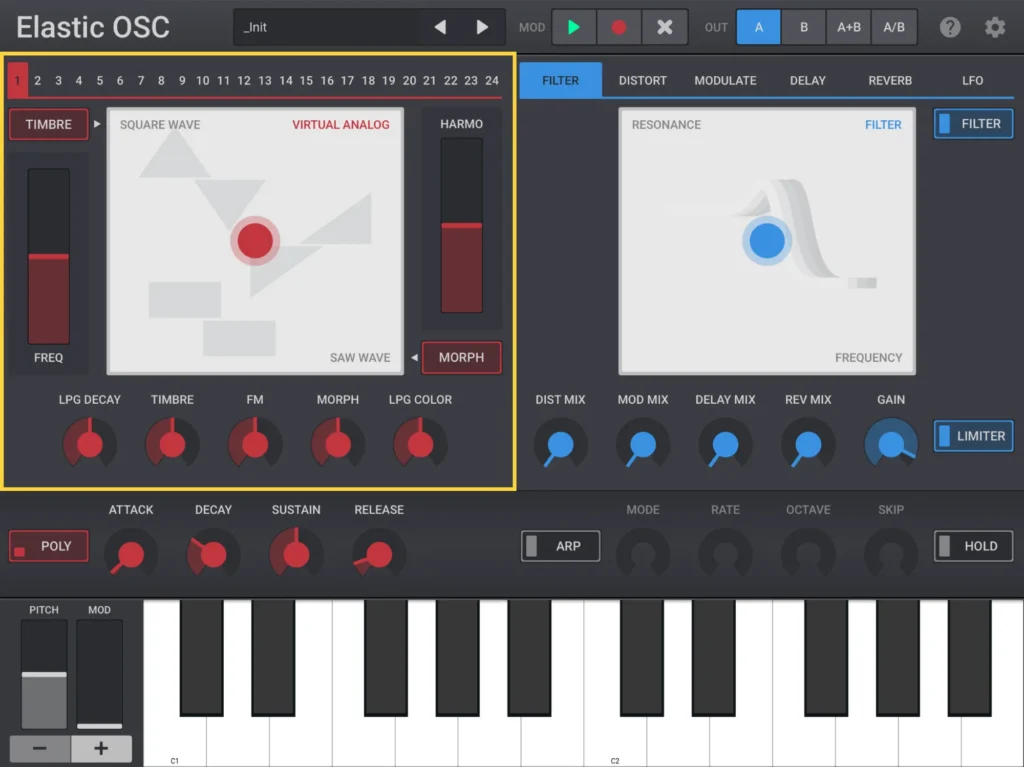
The oscillator section is where the sound originates. It contains an engine selector and expressive controls for the main Plaits parameters Frequency, Timbre, Harmonics and Morph. In addition, it contains controls for the low-pass gate and internal envelopes that shape the attack phase of each note.
Engine selection
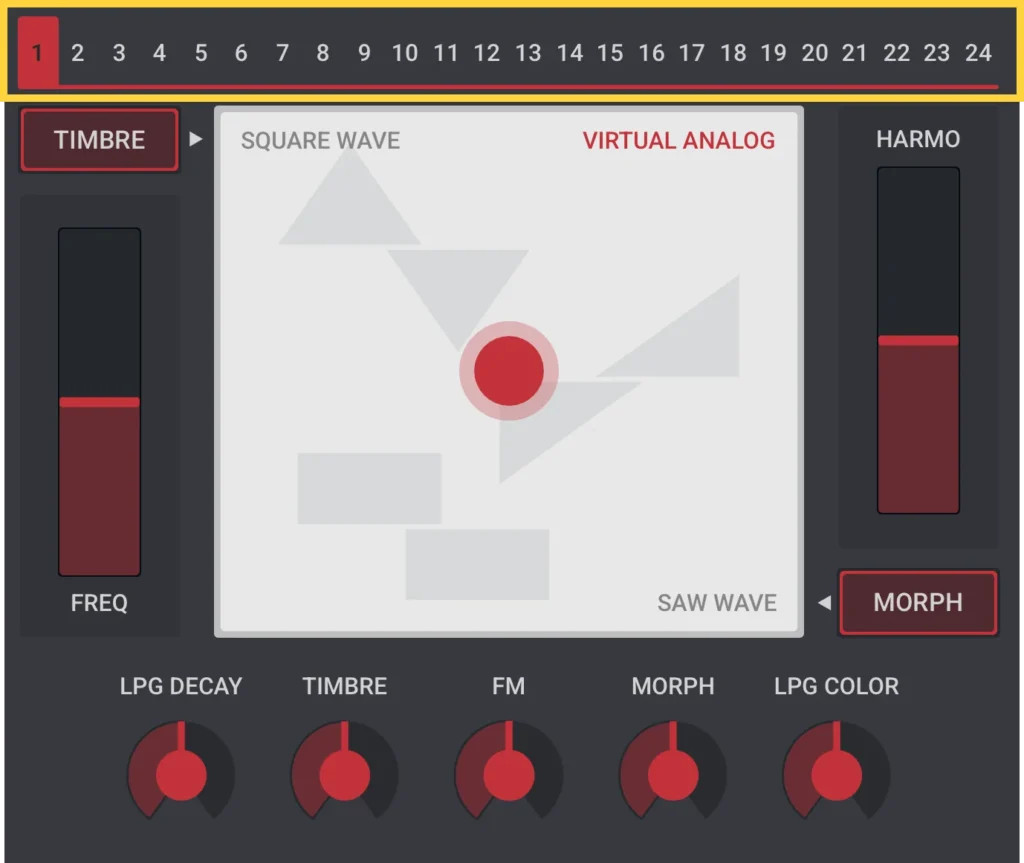
The engine selection strip selects one of 24 synthesis models.
| Engine | Description |
|---|---|
| 1 Virtual Analog | Virtual-analog synthesis of 2 classic waveforms |
| 2 Waveshaping | An asymmetric triangle processed by a waveshaper and a wavefolder |
| 3 Two-operator FM | Two sine-wave oscillators modulating each other’s phase |
| 4 Granular Formant | Simulation of formants and filtered waveforms through the multiplication, addition and synchronization of segments of sine waves |
| 5 Additive | An additive mixture of harmonically related sine waves |
| 6 Wavetable | Four banks of 8×8 waveforms, accessed by row and column, with or without interpolation |
| 7 Chords | Four-note chords, played by virtual-analog or wavetable oscillators |
| 8 Speech | A collection of speech synthesis algorithms |
| 9 Granular Cloud | A swarm of 8 enveloped sawtooth waves |
| 10 Filtered Noise | Variable-clock white noise processed by a resonant filter |
| 11 Particle Noise | Dust noise processed by networks of all-pass or band-pass filters |
| 12 String Model | A mini-Rings inharmonic string modeller |
| 13 Modal Resonator | A mini-Rings modal resonator. When no note is triggering it, the resonator is excited by dust noise |
| 14 Bass Drum | Analog bass drum model |
| 15 Snare Drum | Analog snare drum model |
| 16 Hi-Hat | Analog hi-hat model |
| 17 Virt. Analog VCF | Classic waveshapes passed through a filter |
| 18 Phase Distortion | Phase distortion and modulation |
| 19–21 6OP FM | Two-voice, six-operator FM synthesis, each with 32 presets |
| 22 Wave Terrain | Wave terrain synthesis, interpolating continuously between eight 2D terrains |
| 23 String Machine | String machine emulation with a stereo filter and chorus |
| 24 Chiptune | Four variable square-wave voices, for chords or arpeggios |
Please see the Plaits Manual for additional details about the sound engines.
Engine selection dropdown
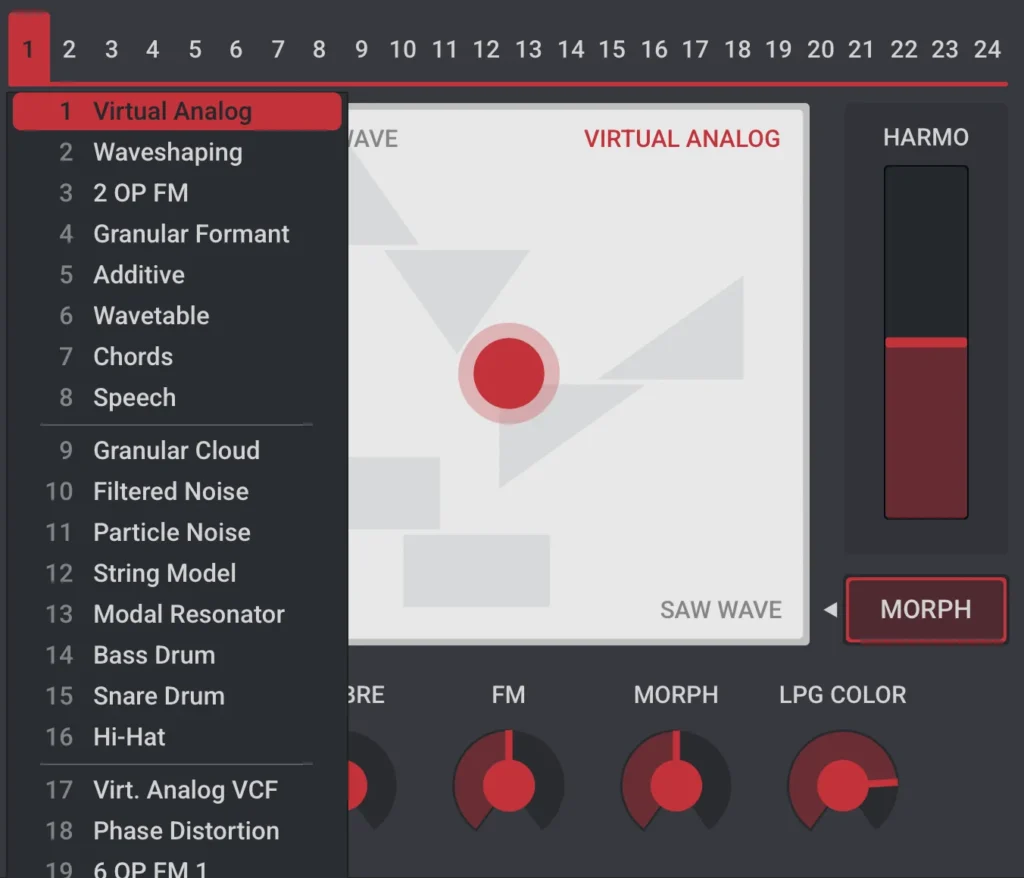
Long-pressing the engine strip opens a scrollable list of all 24 engines by name, with the current selection highlighted. This is an alternative to selecting engines directly from the numbered strip.
Main controls
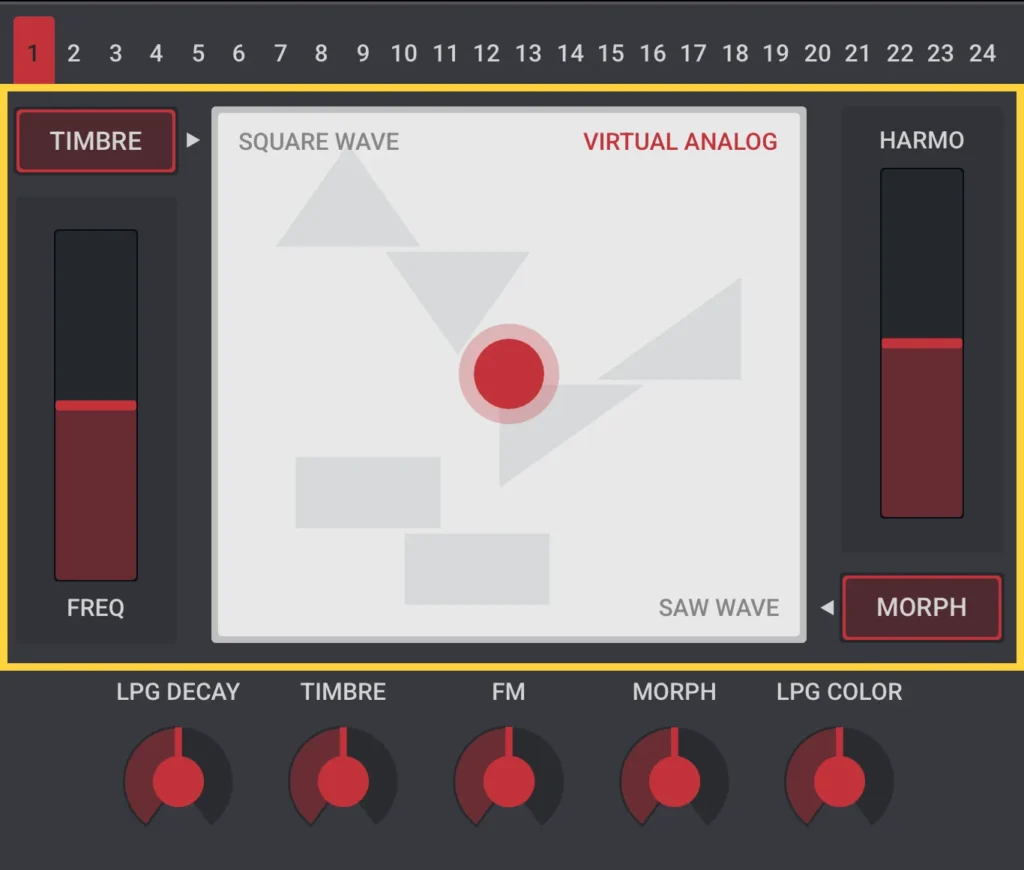
Timbre, Harmonics and Morph are engine-dependent tone controls. Their actual function varies depending on which engine is selected.
In general, TIMBRE sweeps the spectral content from dark/sparse to bright/dense, MORPH explores lateral timbral variations and HARMONICS controls the frequency spread or the balance between the various constituents of the tone.
Frequency and Timbre share the slider on the left and the XY pad’s Y-axis: one is assigned to the slider, the other to the Y-axis. The button above the slider shows which one is currently assigned to the Y-axis, and selecting it swaps the two.
The slider on the right works the same way for Morph and Harmonics, paired with the XY pad’s X-axis instead. The button in the bottom right of the pad shows which of the two is currently assigned to the X-axis, and selecting it swaps the assignment.
When Frequency is assigned to the slider, it sets the oscillator’s pitch across a range of -48 to +48 semitones. Selecting the Frequency slider twice switches it between free frequency and quantized octave steps.
Each of the 24 engines gives Harmonics, Timbre and Morph a different meaning. With help mode on, the XY pad displays the exact meaning of each main parameter for the currently selected engine.
Low-pass gate and internal envelopes
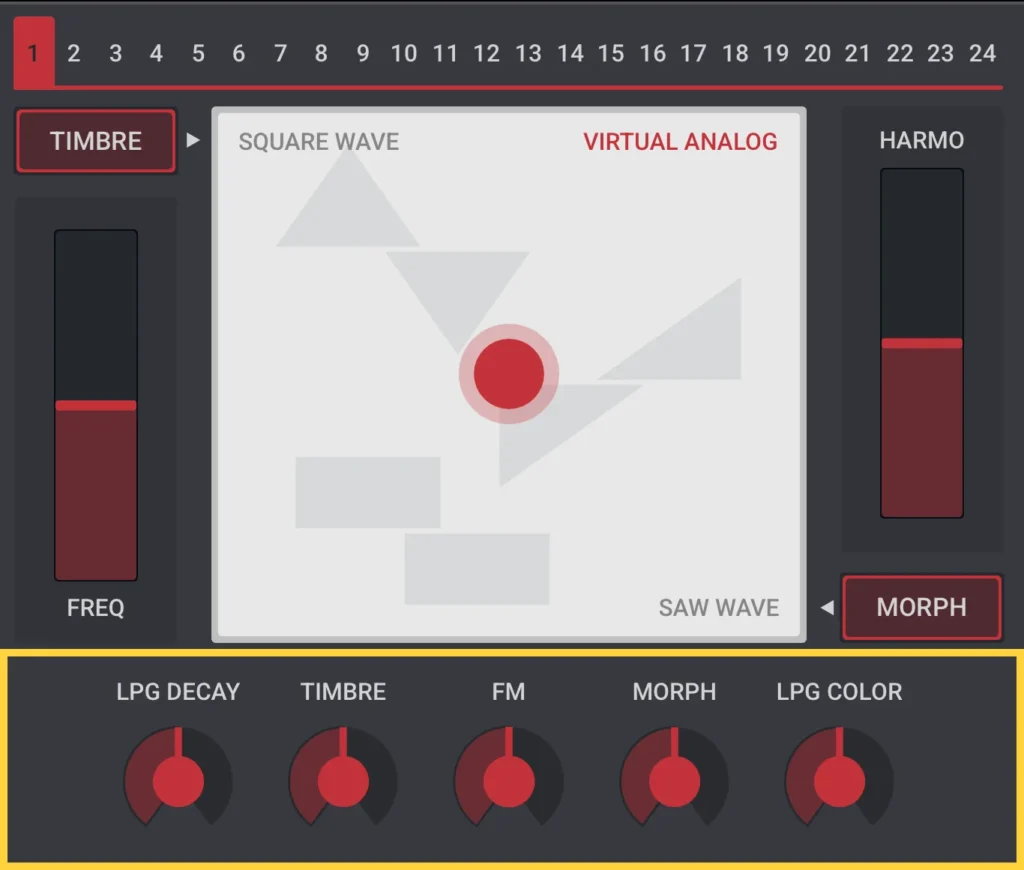
LPG Decay and LPG Color set the character of the low-pass gate. Turning LPG Color counter-clockwise gives the sound a darker character, moving the gate from behaving like a voltage-controlled filter and amplifier (VCFA) towards behaving like a voltage-controlled amplifier (VCA) alone, without the added filtering.
The Timbre, FM and Morph knobs in the center are attenuverters. They set how strongly Plaits’ internal envelope modulates the Timbre, FM and Morph parameters respectively. This modulation can also be inverted by turning the knobs counter-clockwise.
Voices and envelopes
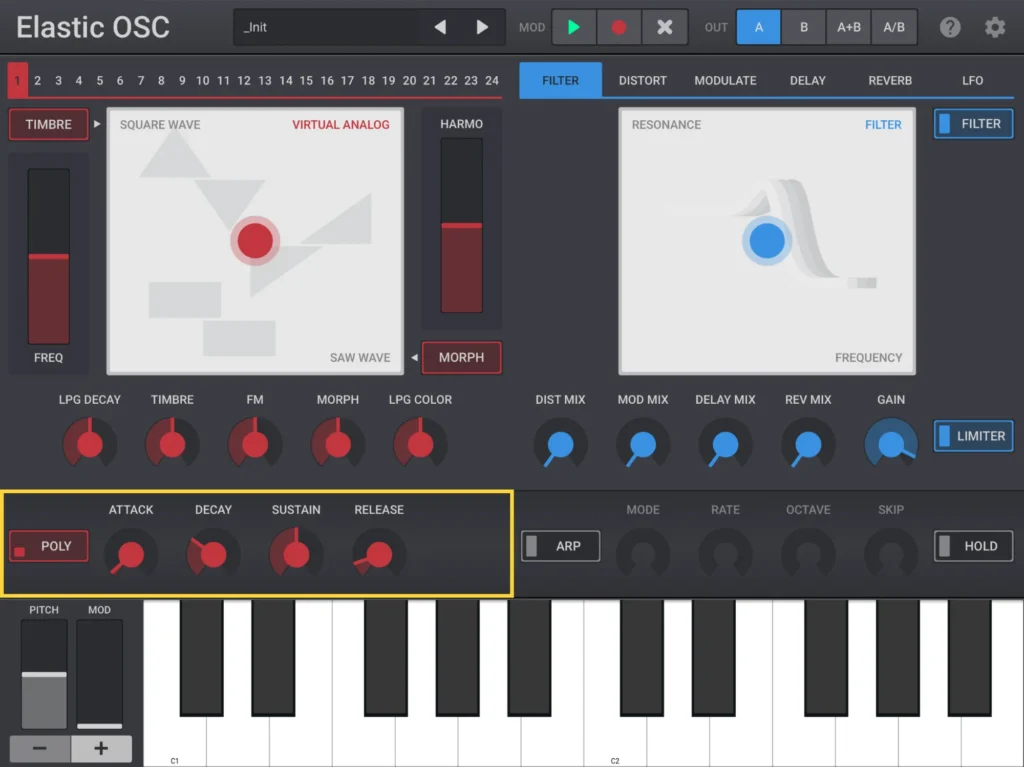
In addition to the low-pass gate described in Oscillator, every note passes through a conventional ADSR amplitude envelope. The voice mode (mono or poly) can be set here as well.
Controls
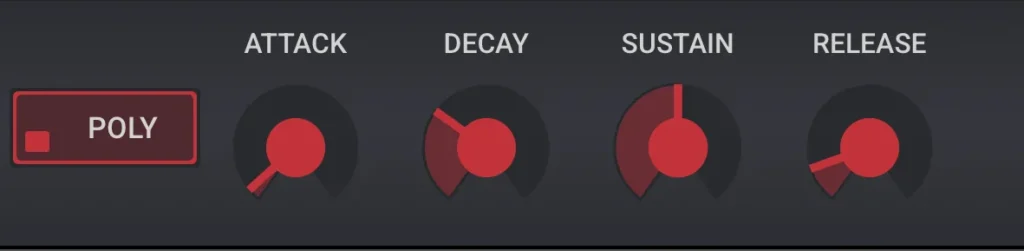
Poly switches between monophonic and polyphonic playing.
Attack sets how long a note takes to reach full volume after it is played.
Decay sets how long a note takes to fall from full volume down to its sustain level.
Sustain sets the volume a held note settles at, once the decay stage has finished.
Release sets how long a note takes to fade to silence after the key is released.
Effects
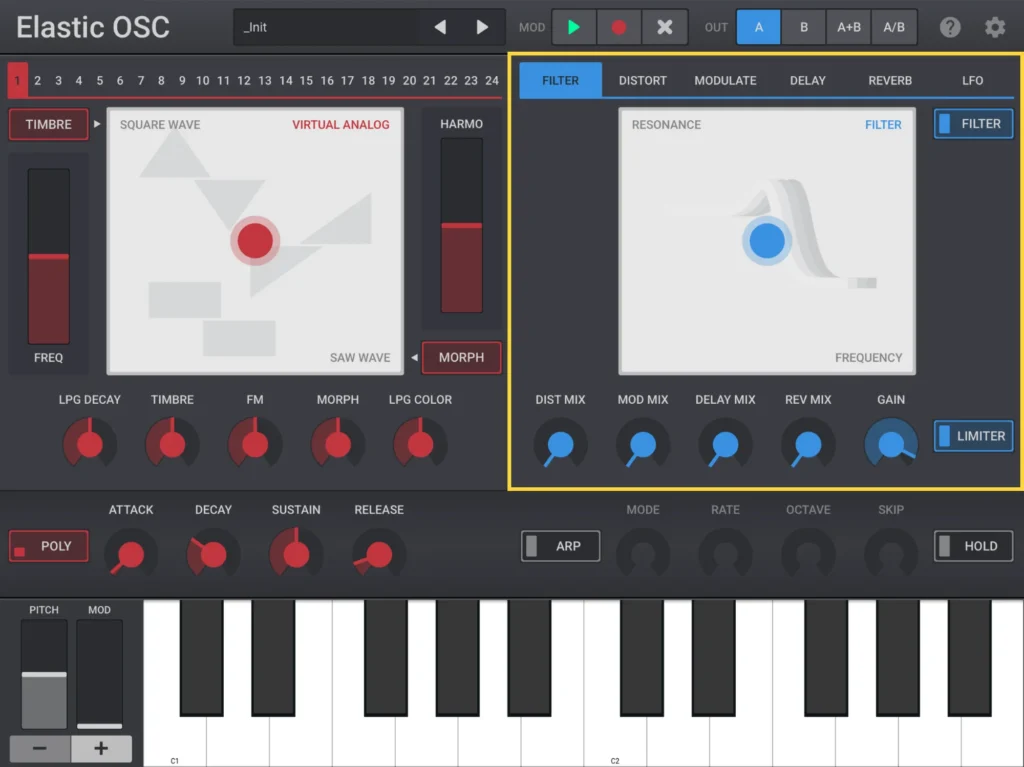
The Effects section has one tab each for Filter, Distortion, Modulate (chorus and phaser), Delay, Reverb and LFO. The mix controls at the bottom of the section control how much of each effect is blended with the original signal. The LFO tab is described in LFOs.
Filter
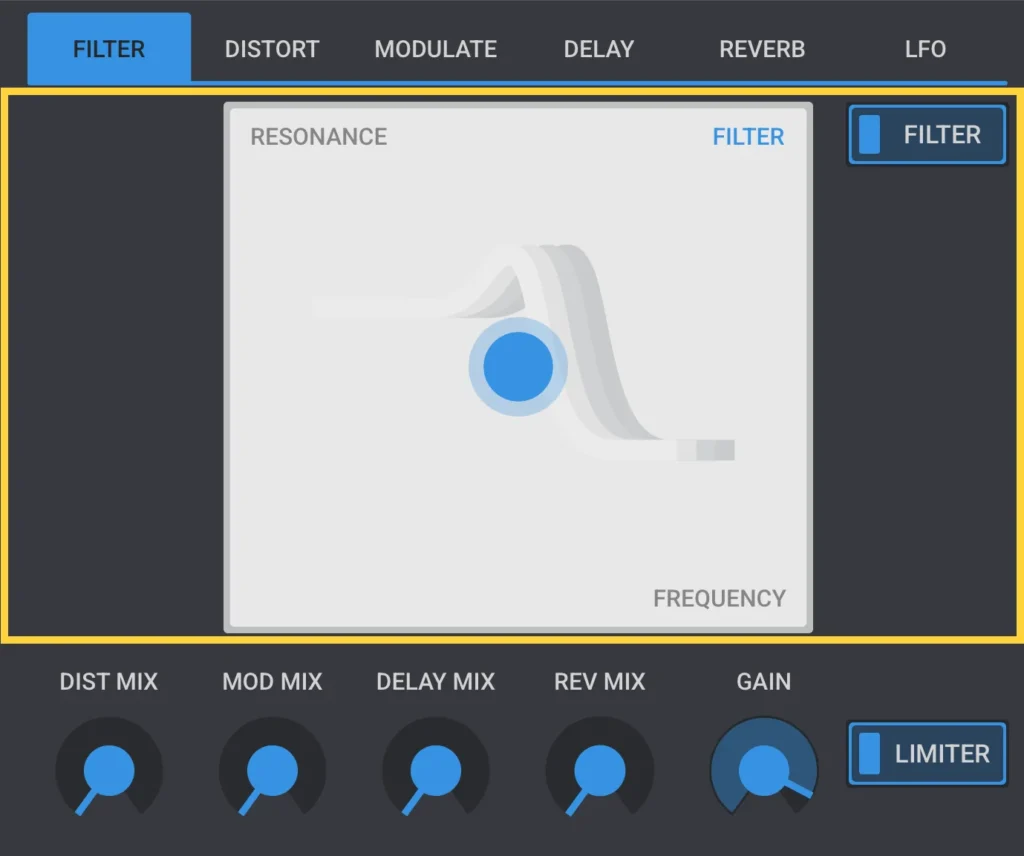
The XY pad’s horizontal axis controls the filter’s cutoff frequency. In addition, it crossfades the filter type from lowpass to highpass. Its vertical axis sets the filter’s resonance. Use the Filter toggle to enable and disable the filter.
Distortion
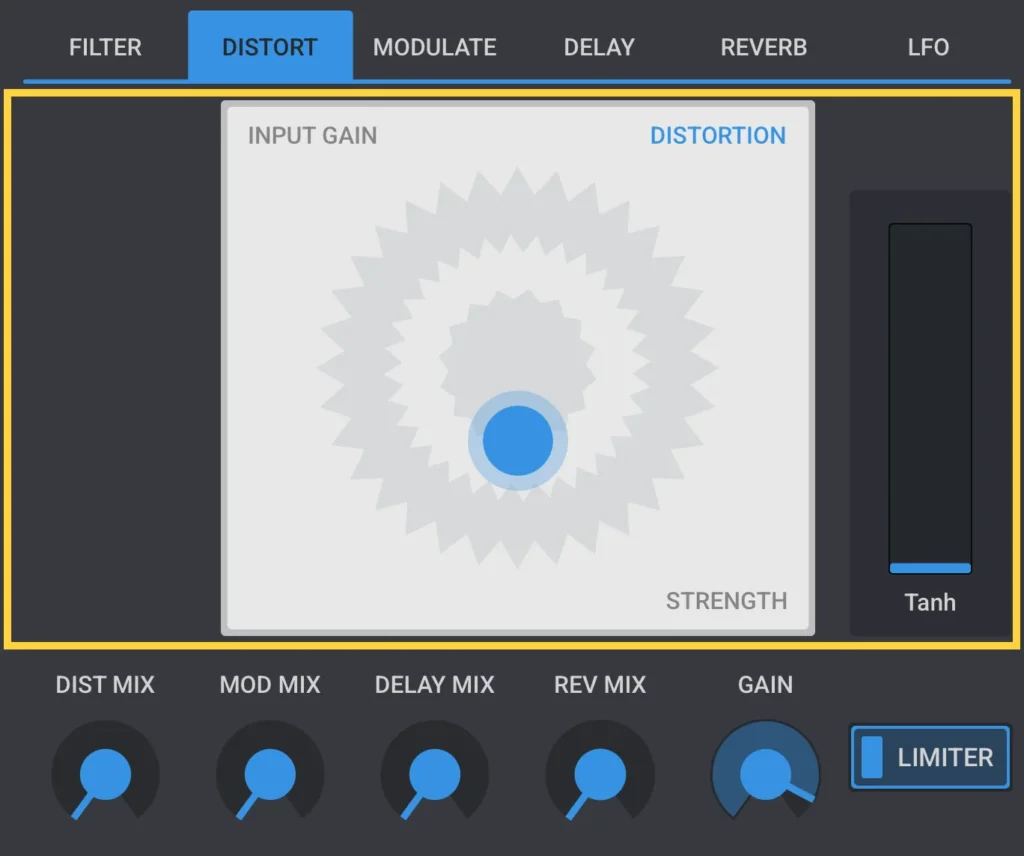
The XY pad’s horizontal axis sets the distortion’s strength. Its vertical axis sets the input gain. The Model slider to the right of the XY pad chooses the distortion type: Tanh, Power, Downsampling, Bitcrush, or Sine.
Modulation
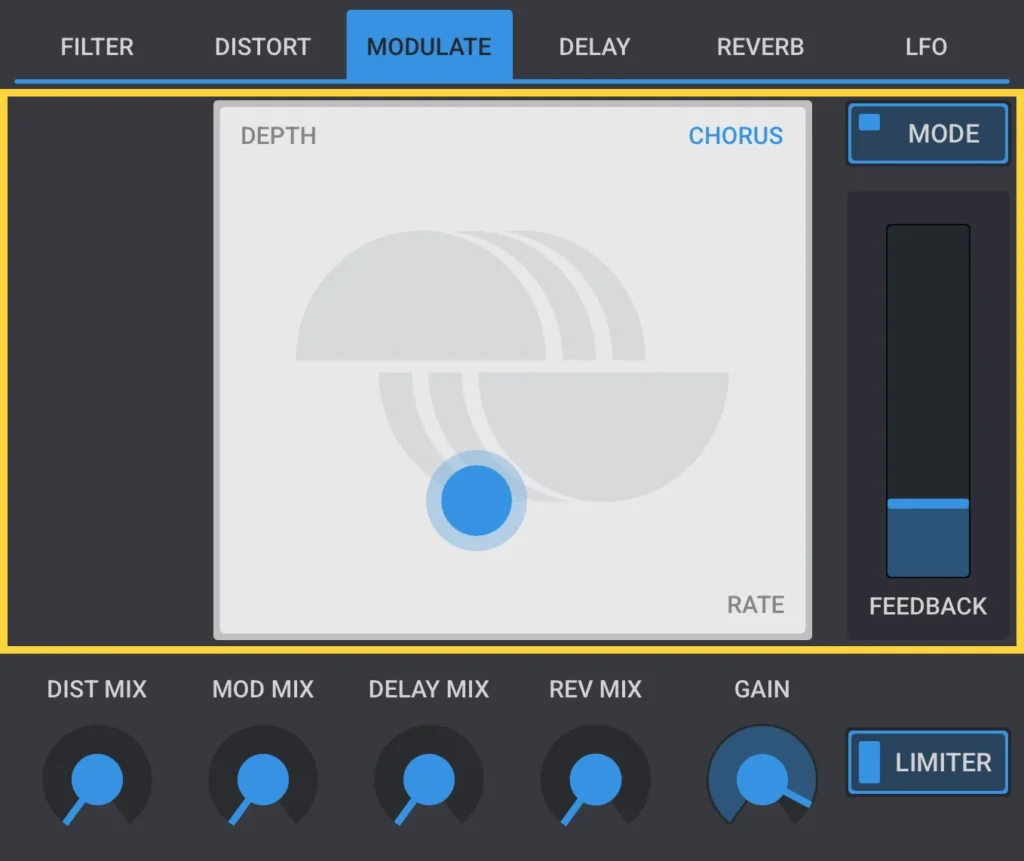
A combined chorus and phaser effect. The XY pad’s horizontal axis sets the effect’s rate, and its vertical axis sets its depth. Feedback feeds the effect’s output back into its input, making the sound more resonant and metallic.
The Mode button switches between the two modes:
- Chorus, which detunes and delays a copy of the signal to thicken it
- Phaser, which sweeps a series of notches through the signal
Delay
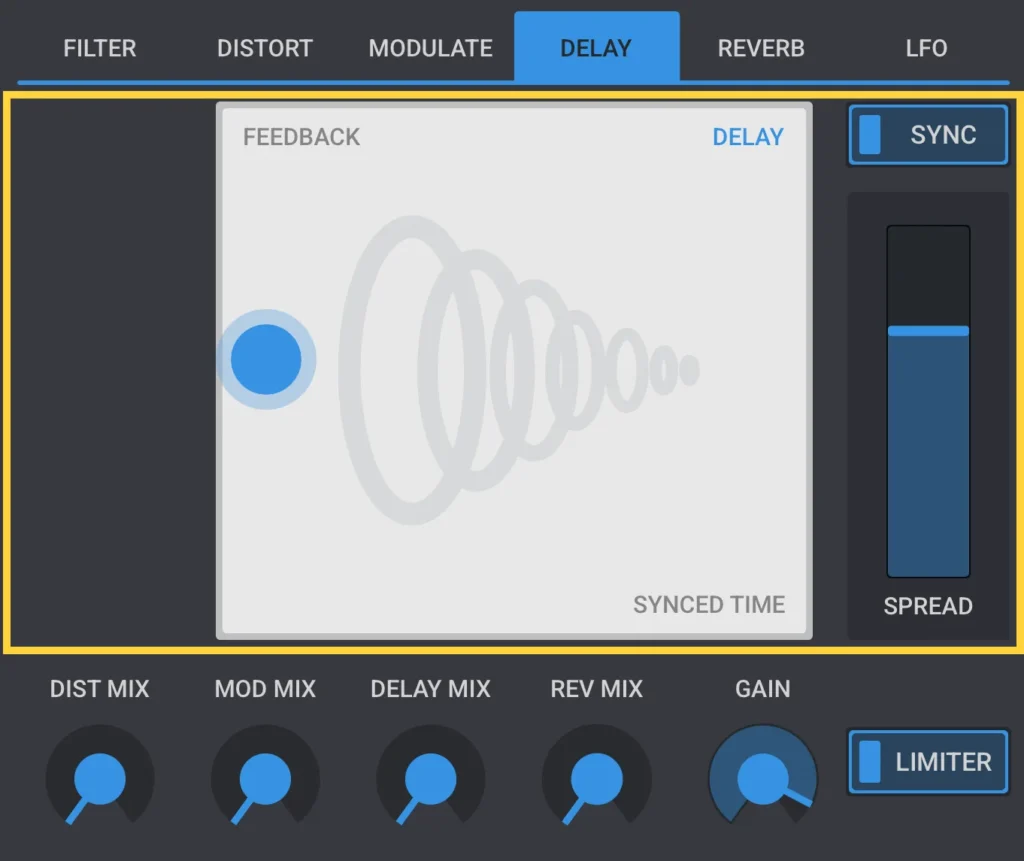
The XY pad’s horizontal axis sets the delay time. Its vertical axis sets the feedback amount. Sync switches the delay time between following the host tempo and running freely. Spread controls the stereo width of the delay.
Reverb
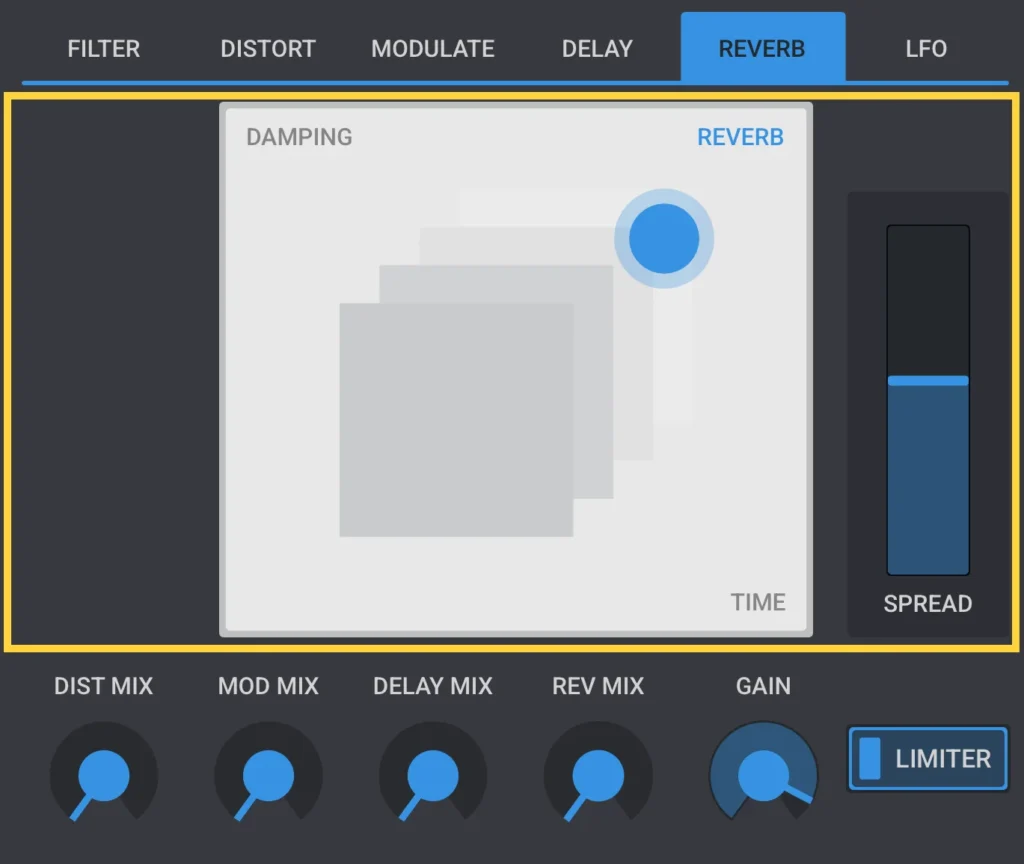
The XY pad’s horizontal axis sets the reverb time. Its vertical axis sets damping, which affects the high frequencies in the reverb tail. Spread controls the stereo width of the reverb.
Effects mixer and limiter
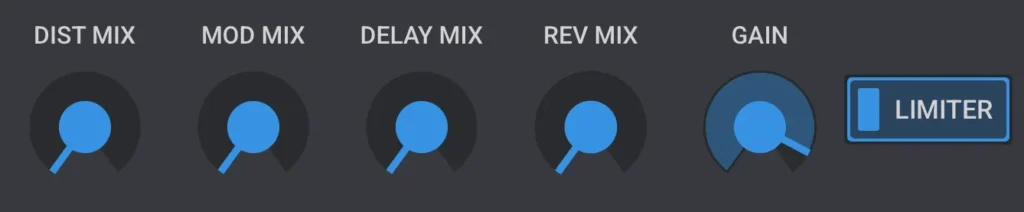
Dist mix sets the balance between the dry signal and the distortion effect.
Mod mix sets the balance between the dry signal and the chorus/phaser effect.
Delay mix sets the balance between the dry signal and the delay effect.
Rev mix sets the balance between the dry signal and the reverb effect.
Gain sets the master output level, over a range of -60 dB to +6 dB.
Limiter turns on a limiter set to -1 dB together with a compressor set to -5 dB.
Keyboard
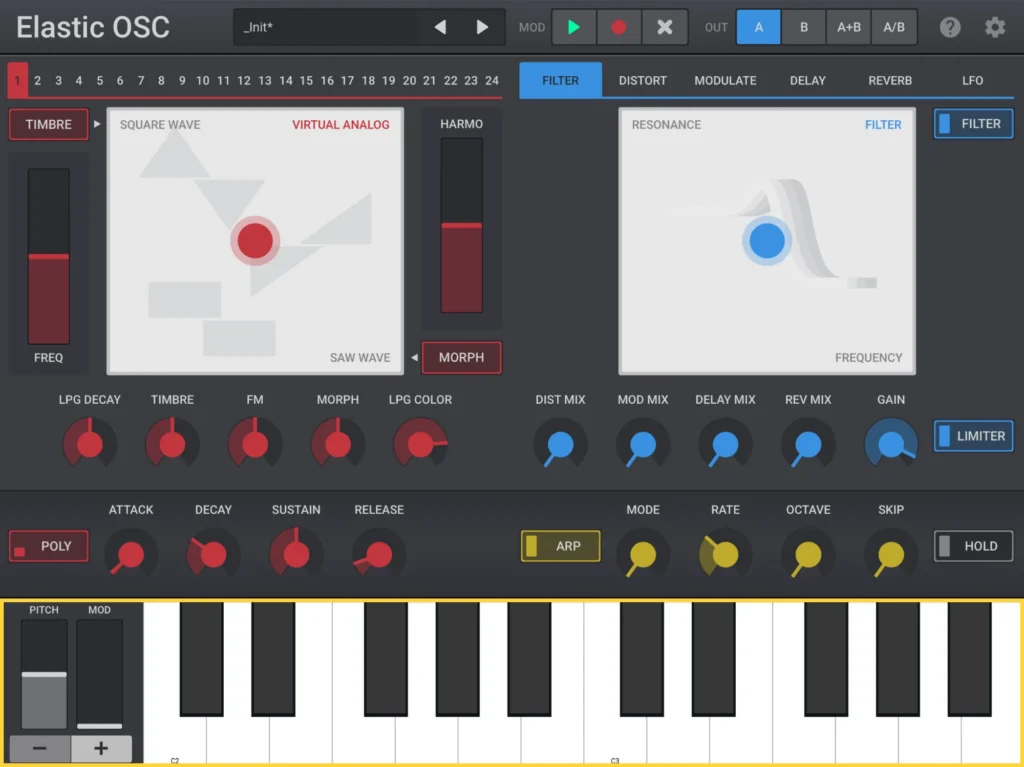
At the bottom of the app, you’ll find an on-screen keyboard, octave shift buttons, and the pitch and mod wheels.
Octave shift buttons

Shift the on-screen keyboard down or up by one octave. Each C key is labeled with its octave number.
Pitch wheel

Use the pitch wheel next to the keyboard to bend the pitch up and down.

Selecting the “PITCH” text above the pitch wheel opens the range controls, where the pitch bend range can be set in semitones.
Mod wheel

The mod wheel scales the depth of one or more modulation sources, controlled by the Mod Wheel setting in General settings. It scales either recorded in-app modulation, the LFOs, or both. At the bottom of its range the assigned modulation has no effect, and at the top it plays back at full depth.
MPE keyboard

The MPE keyboard replaces the standard one when MPE is turned on in MPE. Sliding a finger sideways on a key sends Glide, and moving it up or down sends Slide.
Arpeggiator
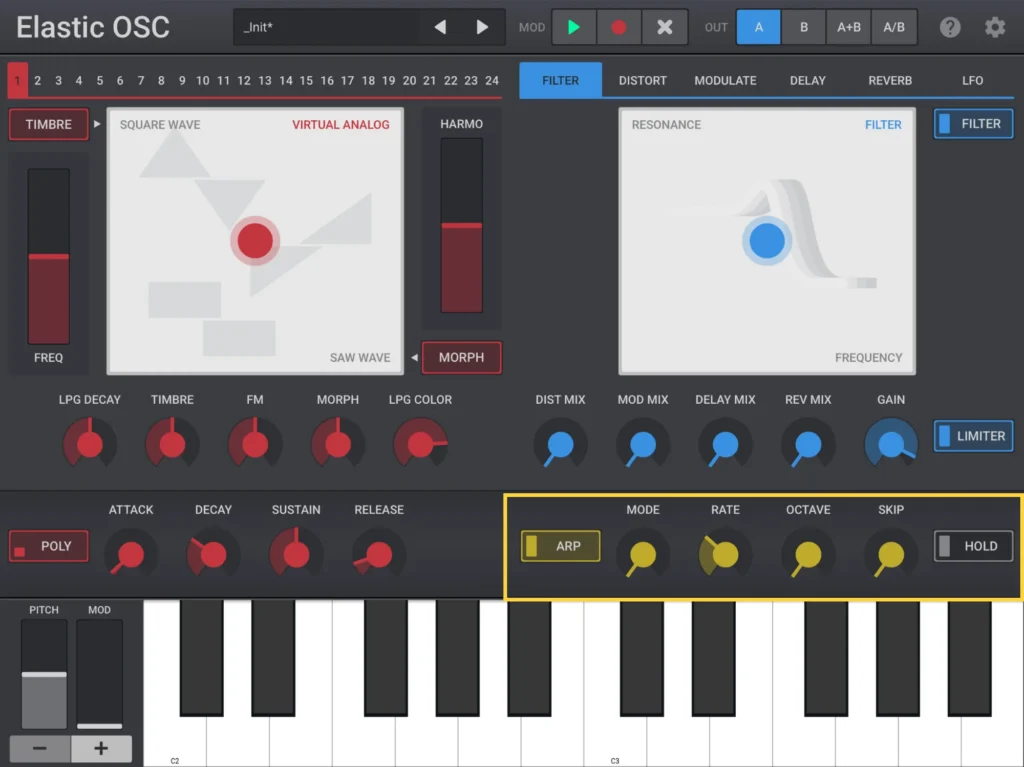
The arpeggiator automatically plays back the currently held notes in a pattern, at a set rate.
Controls
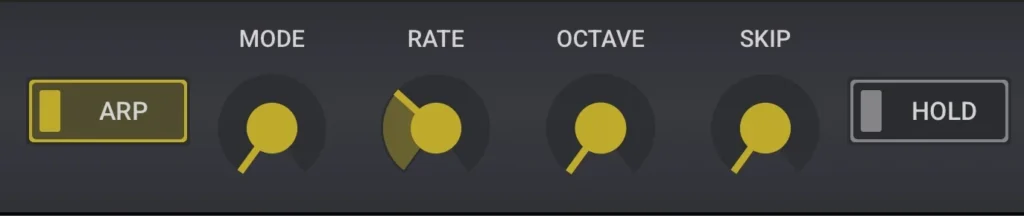
Arp turns the arpeggiator on or off.
Mode sets the pattern to one of the following modes:
- Up
- Down
- Up/down (repeating top and bottom note)
- Up/down (avoiding repeated notes)
- The order the notes were played in
- Random
- Chord
Rate sets the arpeggiator’s playback speed.
Octave sets how many octaves the pattern spans.
Skip drops every second, third, or later note from the pattern, depending on its value.
Hold keeps the currently held notes sounding, and arpeggiating, after the keys are released.
Modulation 1: Automation
Elastic OSC is a real Modulation Monster. You can choose between three methods—Automation, LFOs, and MPE—to alter the sound quickly and dynamically.
This unique “elastic” feature is part of all our apps and makes sound design fun for both beginners and professionals, often leading to more organic and surprising results than traditional DAW automation.
Almost all parameters can be automated or modulated directly inside the instrument in loops from 1 to 4 bars and stored within presets.
Recording and playback
The MOD controls in the header bar record and play back movements of knobs, sliders, or XY pads over a looping timeline. The loop length is set by Automation Len in General settings (1 to 4 bars).
Play turns on playback of previously recorded modulations.
Record arms for recording. While armed, moving a control captures its motion. Moving the same control while Record is off instead erases whatever was previously recorded for it.
Clear removes recorded modulation, offering a choice between deleting only the most recently recorded control or all of them.
Recorded automation is saved with the preset. Loading a preset loads its automation data as well.
The mod wheel can scale how strongly recorded automation is applied during playback (see Keyboard and Mod Wheel in General settings).
Animation Level in General settings sets whether XY pad motion is visualized during automation playback.
Modulation 2: LFOs
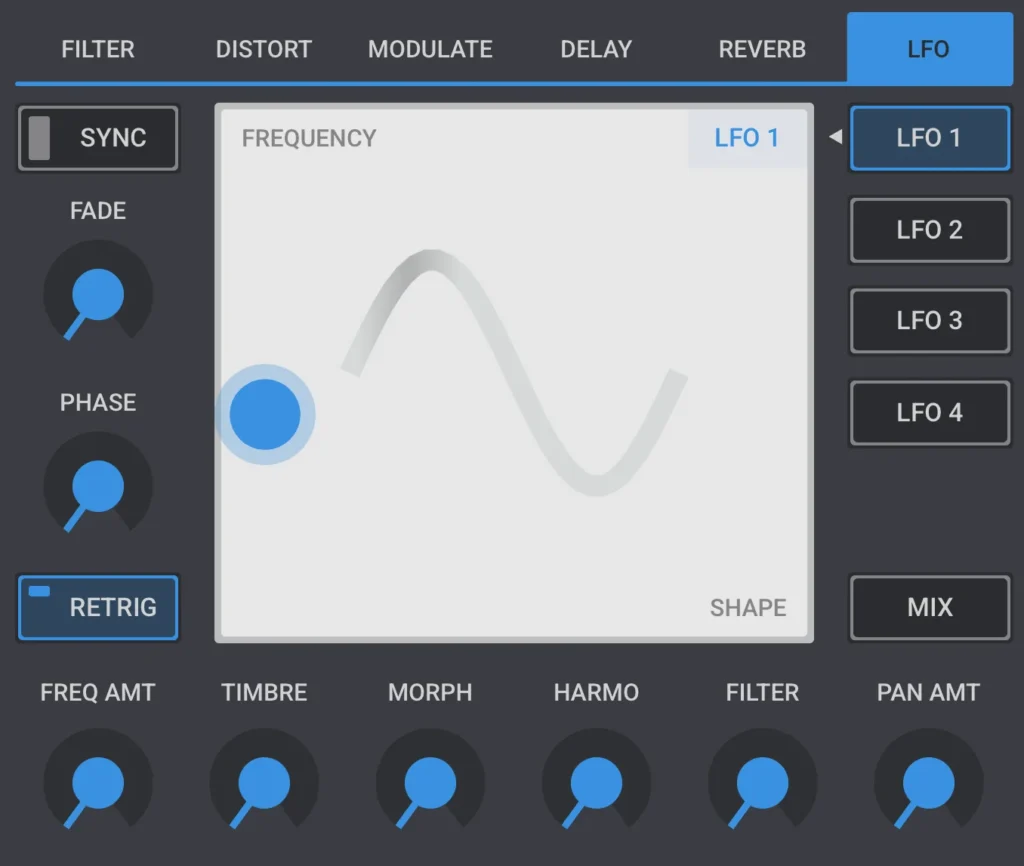
Elastic OSC has 4 LFOs3, which can be routed to 6 different destinations: Frequency, Timbre, Morph, Harmonics, Filter cutoff and Pan.
Selecting an LFO’s label in the top right corner of the XY pad turns that LFO on or off.
3 The desktop version includes all four LFOs. On iOS and Android, only LFO 1 is included; three additional LFOs are available as an in-app purchase in Store settings.
LFO shape and frequency
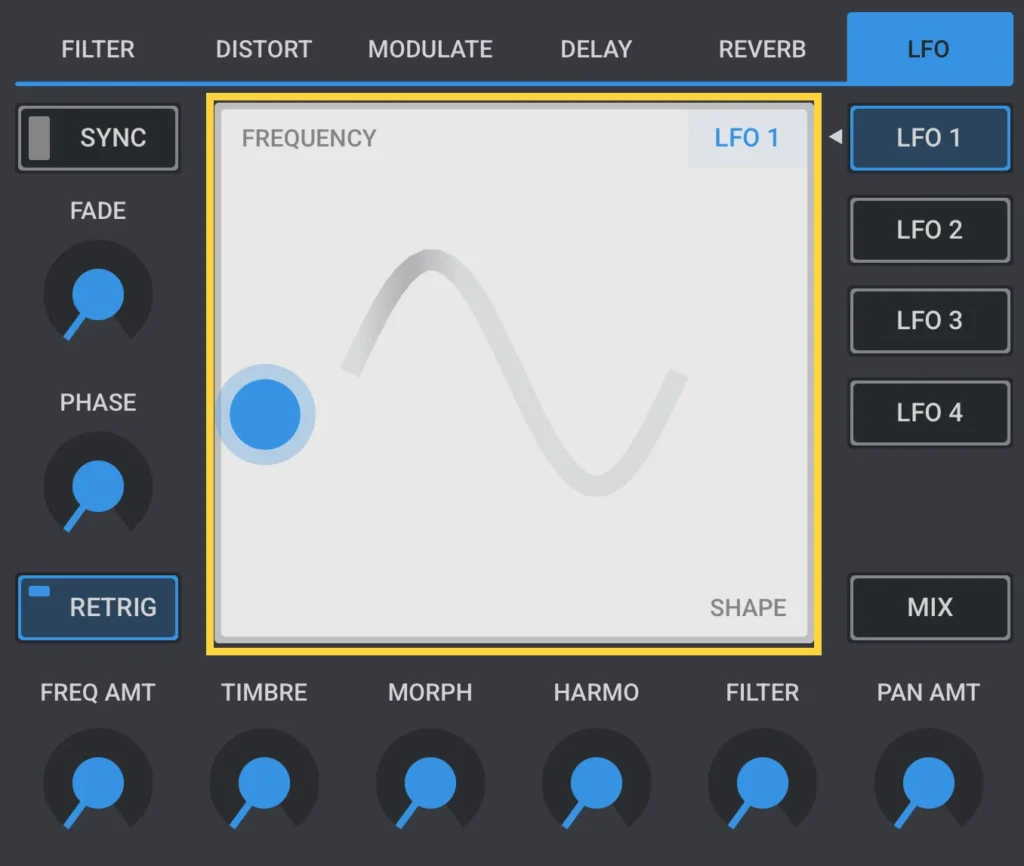
For the currently selected LFO, the XY pad’s vertical axis sets its frequency and its horizontal axis sets its shape. Like most other controls, the XY pad’s motion can be recorded as in-app automation (see Modulation 1: Automation).
The following LFO shapes are available:
- Sine
- Triangle
- Ramp up
- Ramp down
- Pulse
- Sample & Hold
LFO amounts
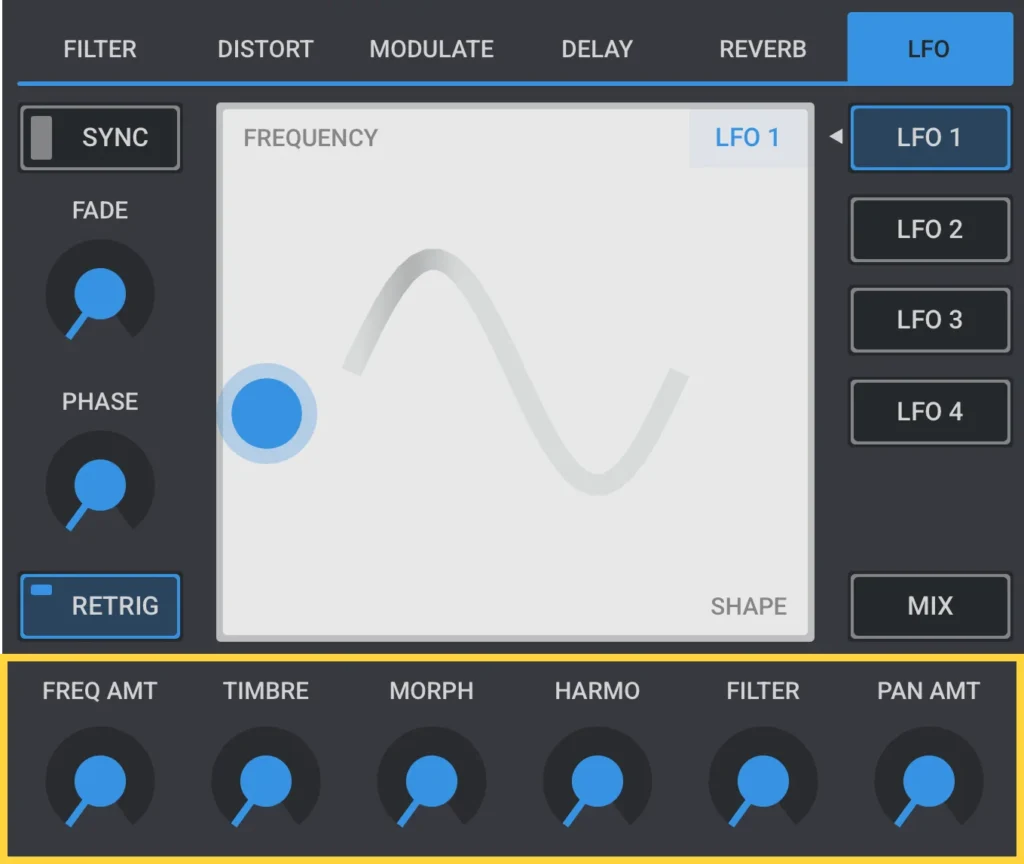
The LFO amount knobs control how strongly the LFOs modulate each of six destinations: Frequency, Timbre, Morph, Harmonics, Filter, and Pan. The LFO amounts are shared by all LFOs. To control how much an individual LFO influences a specific parameter, use the LFO mixer.
LFO options
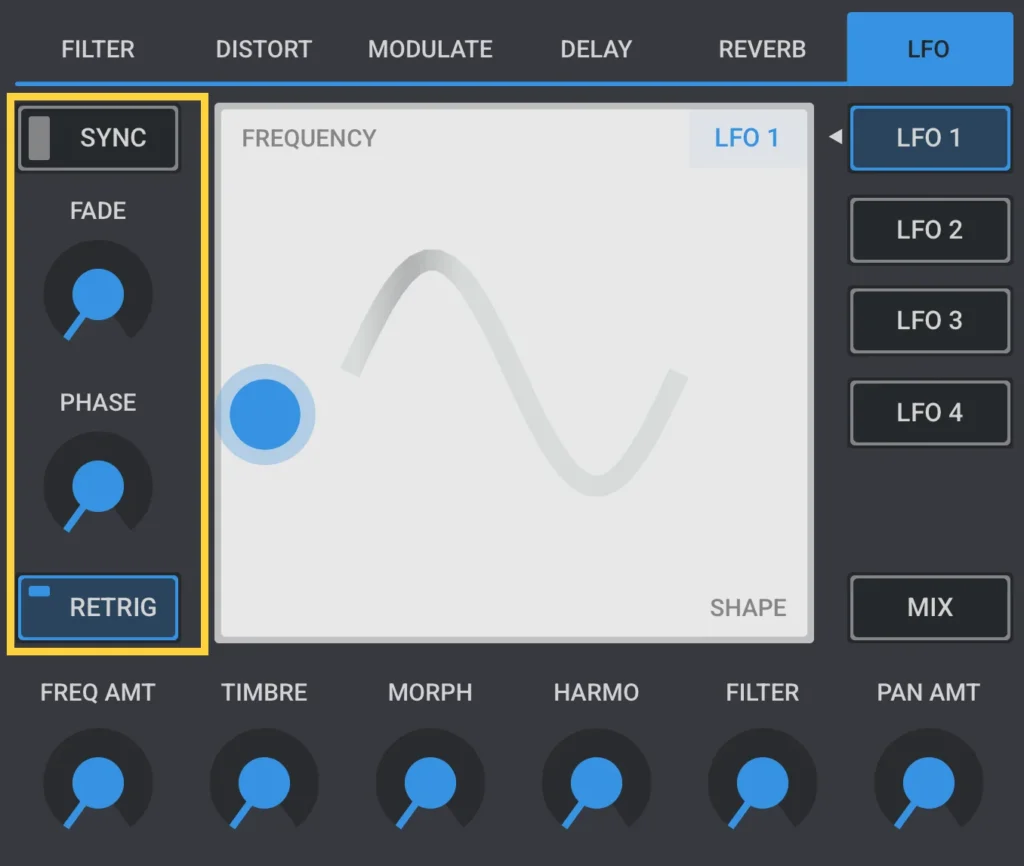
Sync locks the LFO’s rate to the host tempo.
Fade sets a fade-in time applied each time the LFO retriggers.
Phase sets the LFO’s starting phase.
Retrig restarts the LFO from that phase on every note-on.
LFO navigation buttons
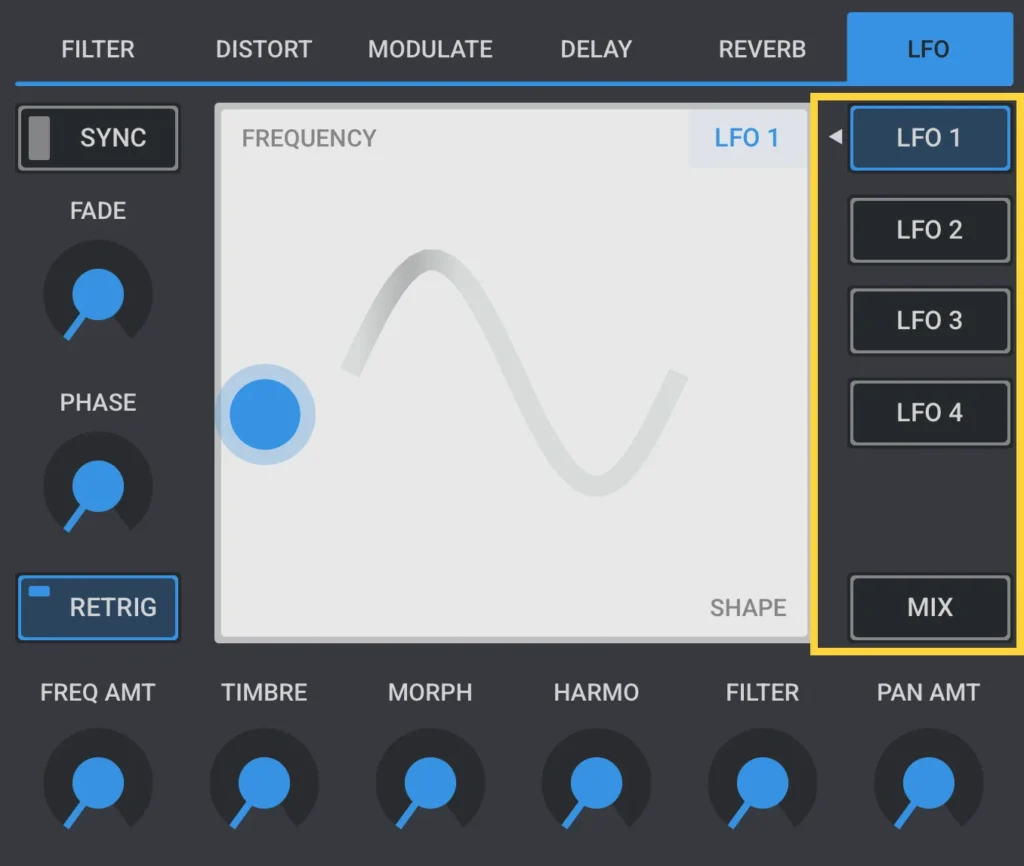
Switches between the four individual LFOs and the Mix view described below.
LFO mixer
LFO Mixer
Elastic OSC offers 4 LFOs and a unique LFO mixer: Instead of assigning LFOs one by one, you blend the outcome of 4 LFOs in the LFO mixer to 6 selected synth parameters.
Different speeds, shapes, and intensities interact, creating evolving motion that feels less like programming and more like playing with sound: a “modular playground” without the patching.
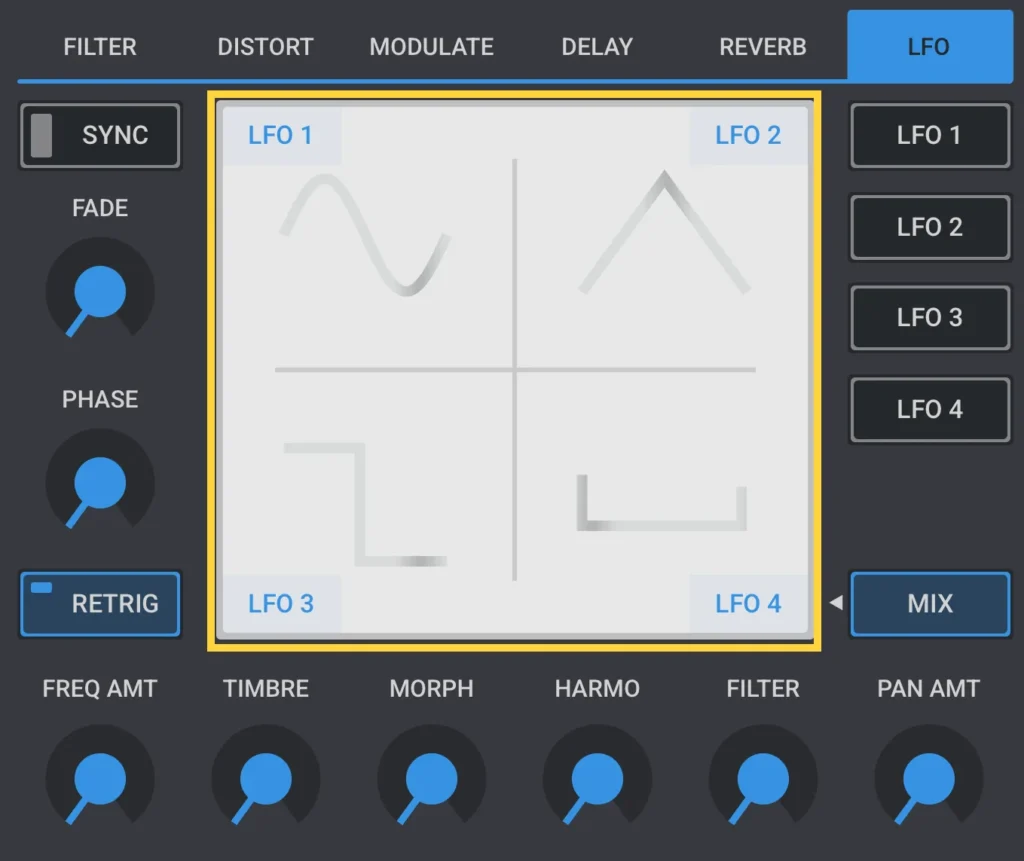
Displays all four LFO shapes at once, one in each corner of the pad. Across the four LFOs, the contributions to a given target always add up to 100%. The balance between them is set by the amount knobs described in LFO amounts.
Modulation 3: MPE
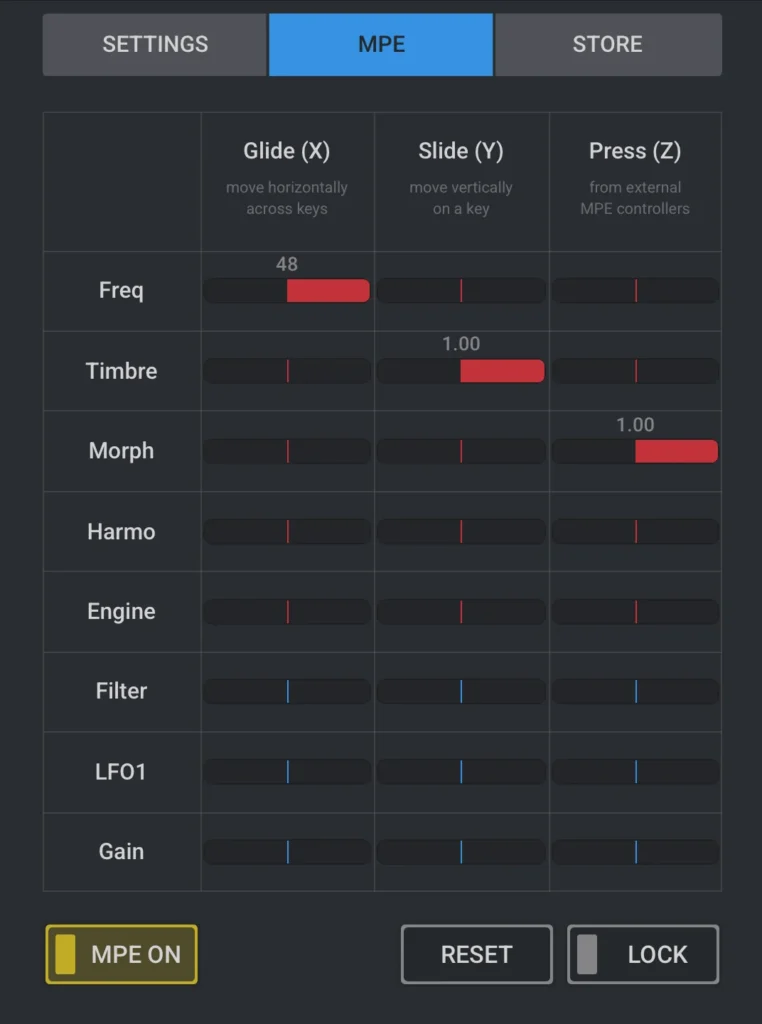
Open the MPE tab from the gear menu in the header bar.
MPE (MIDI Polyphonic Expression) maps per-note gestures to synthesis parameters. When toggled on, three gestures can be used:2
- Glide: moving a finger horizontally across a key
- Slide: moving a finger vertically on a key
- Pressure: applying pressure to a key
Both Glide and Slide can be played with the internal MPE keyboard. Pressure requires an external MIDI controller.
Each of these three gestures can be mapped, with a positive or negative amount, to one of eight targets: Freq, Timbre, Morph, Harmo, Engine index, Filter cutoff, LFO1 rate, or Gain. The mapping is configured in the MPE matrix shown above.
MPE On turns MPE on and switches the on-screen keyboard to the MPE variant described in Keyboard.
Reset clears the entire mapping.
Lock keeps the current mapping from being overwritten when a new preset is loaded.
2 MPE is an in-app purchase on iOS and Android, but comes for free with the desktop version.
Settings (General, MIDI, Store)
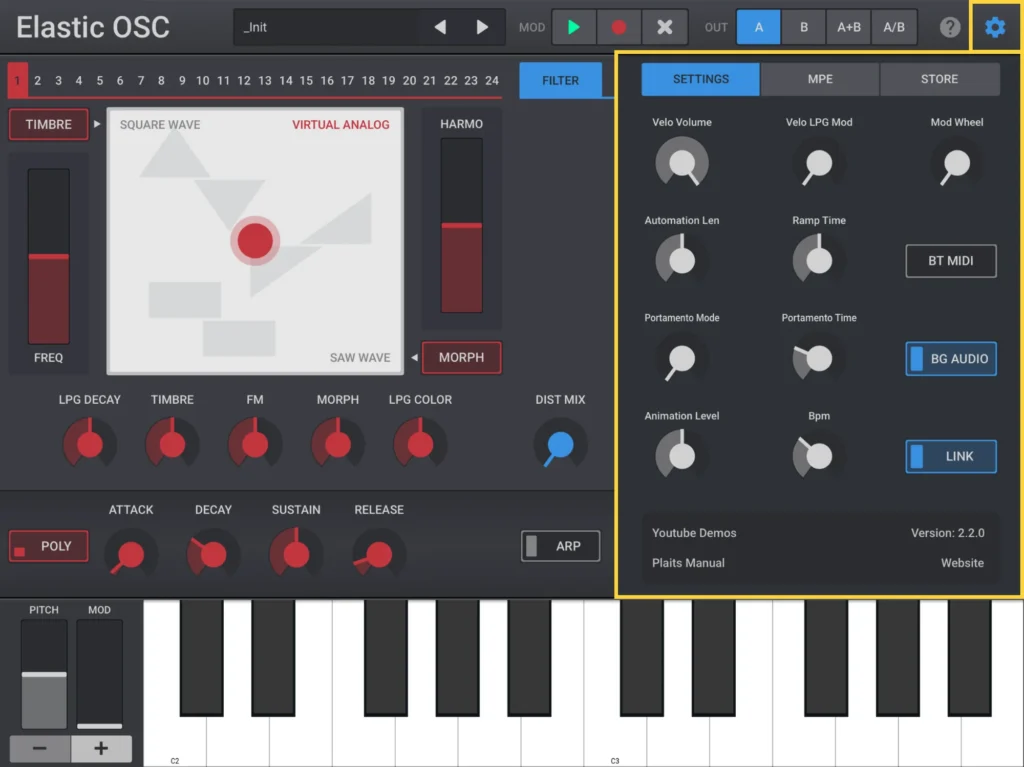
The Settings screen can be opened by selecting the gear icon in the header bar. In the standalone app, the gear menu has Settings, MPE, MIDI, and (on iOS and Android) Store. Plugin versions show Settings and MPE only. The MPE tab is described in MPE.
General settings
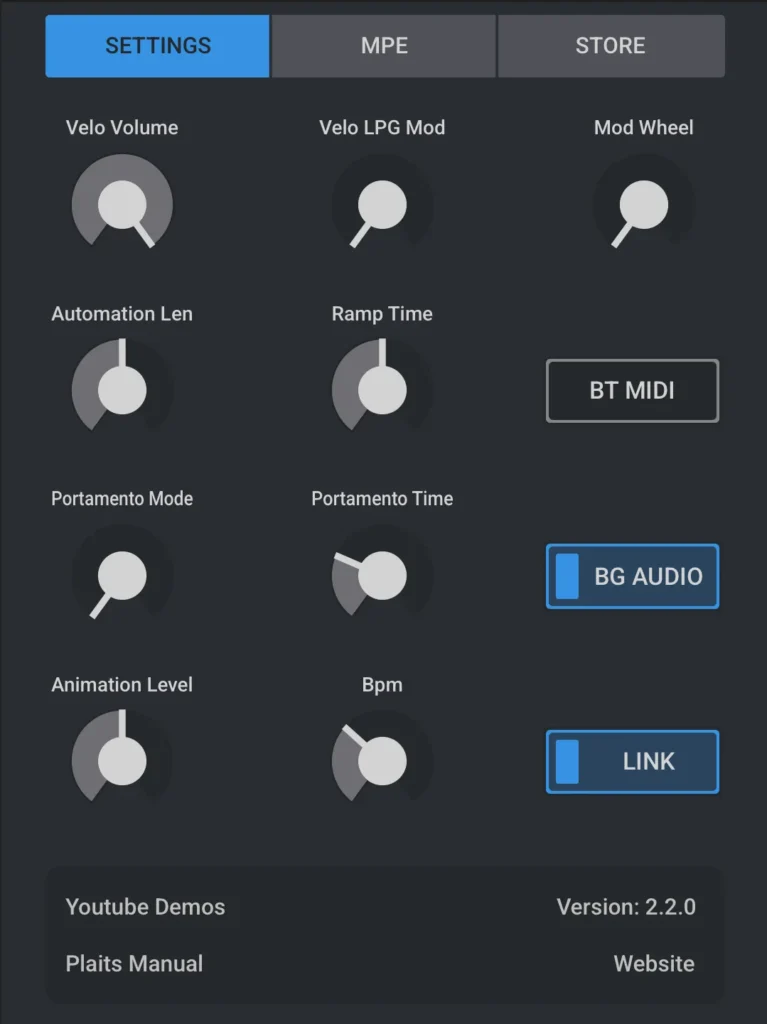
Velo Volume sets how strongly note velocity affects the synth’s output volume.
Velo LPG Mod sets how strongly note velocity affects the LPG (lowpass gate) modulation amount.
Mod Wheel chooses what the mod wheel controls:
- Recorded automation depth
- LFO modulation depth
- Recorded automation depth and LFO modulation depth
Automation Len sets the loop length used by the header’s MOD controls, described in Modulation 1: Automation.
Ramp Time sets the glide time applied when switching engines, described in Oscillator.
BG Audio, available in the standalone iOS app, keeps audio playing while the app is in the background.
Portamento Mode chooses when portamento glide is applied:
- Off
- Only glide when playing legato
- Always glide
Portamento Time sets the glide time between notes.
Bpm sets the tempo used in standalone use.
Animation Level sets the intensity of the XY pad visualisations:
- Off
- Animate only during user interaction
- Animate during user interaction and automation playback
MIDI settings (standalone only)
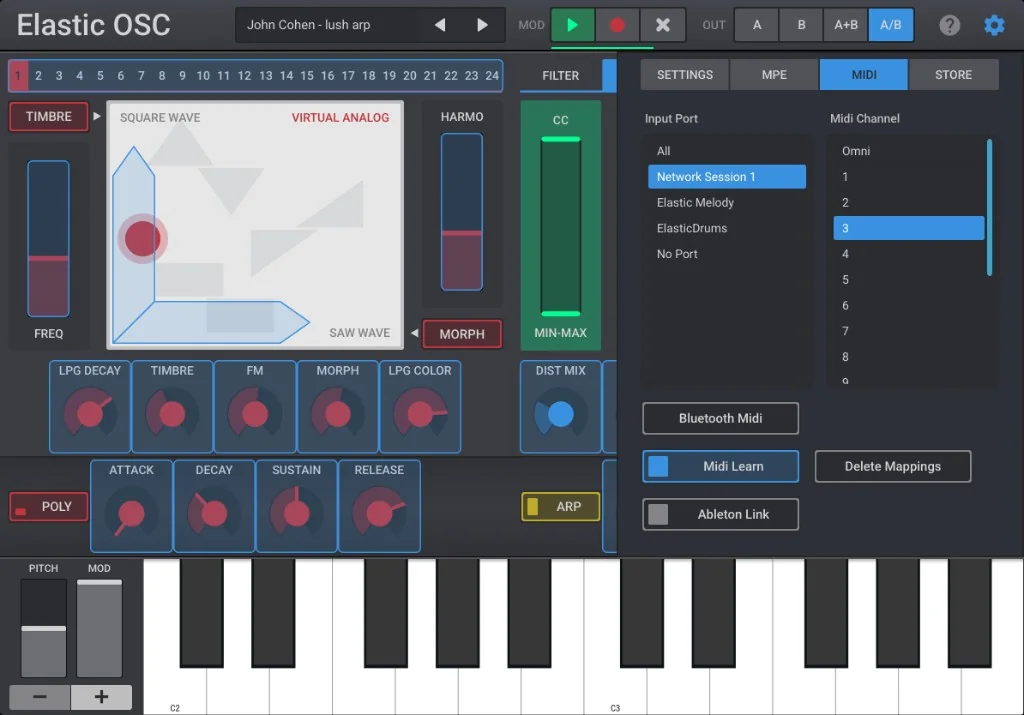
The MIDI tab is available only in the standalone app (not in AU, VST3, or AUv3). It configures external MIDI input and, on desktop standalone, custom MIDI CC mapping.
Input Port selects which MIDI inputs Elastic OSC listens to: All, No Port, or a specific device from the list.
Midi Channel filters incoming MIDI to one channel (1–16) or Omni (all channels). This filter does not apply to MPE per-note channels when MPE is enabled.
Midi Learn turns CC learn mode on. The settings panel closes so you can touch a knob, slider, or XY control, then move a controller knob or fader to assign that CC. While learn mode is active, the settings gear icon in the header bar blinks. CC mappings are saved with your global settings and apply across presets.
Delete Mappings appears while Midi Learn is on. It removes all custom CC assignments.
Bluetooth Midi opens the platform Bluetooth MIDI pairing flow (system dialog on iOS and Android; instructions on macOS).
On iOS standalone, Ableton Link on this tab opens Link preferences. See Ableton Link (iOS only).
Ableton Link (iOS only)
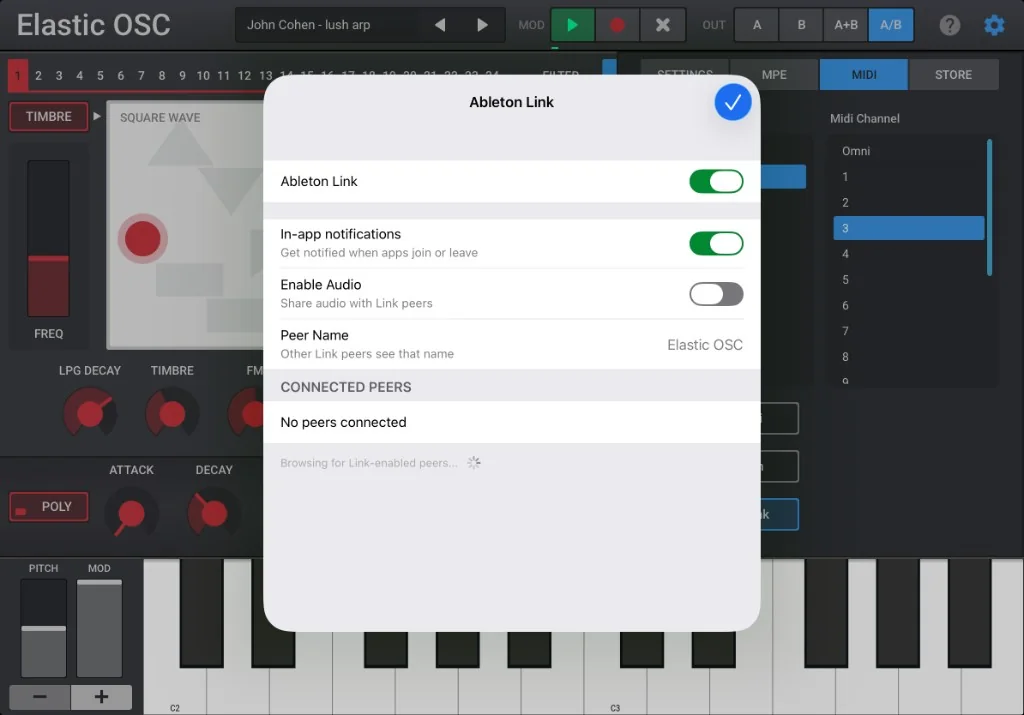
On iOS standalone, open the MIDI tab in Settings and select Ableton Link to reach these preferences. On this screen, the following controls are available:
Ableton Link. This enables and disables Link. When it is enabled, the app’s tempo is synchronized with other Link-enabled apps and devices on the same network.
In-app notifications. Enable this to be notified when another app joins or leaves the session.
Enable Audio shares Elastic OSC’s audio output with connected Link peers. Note that Ableton Link Audio requires Ableton 12.4 or later. In addition, Ableton recommends streaming audio over a wired connection (e.g. Ethernet over USB-C on iOS) to avoid dropouts and keep latency low.
Peer Name sets the name other Link peers see for this device.
Connected Peers shows how many peers are currently linked.
Store settings
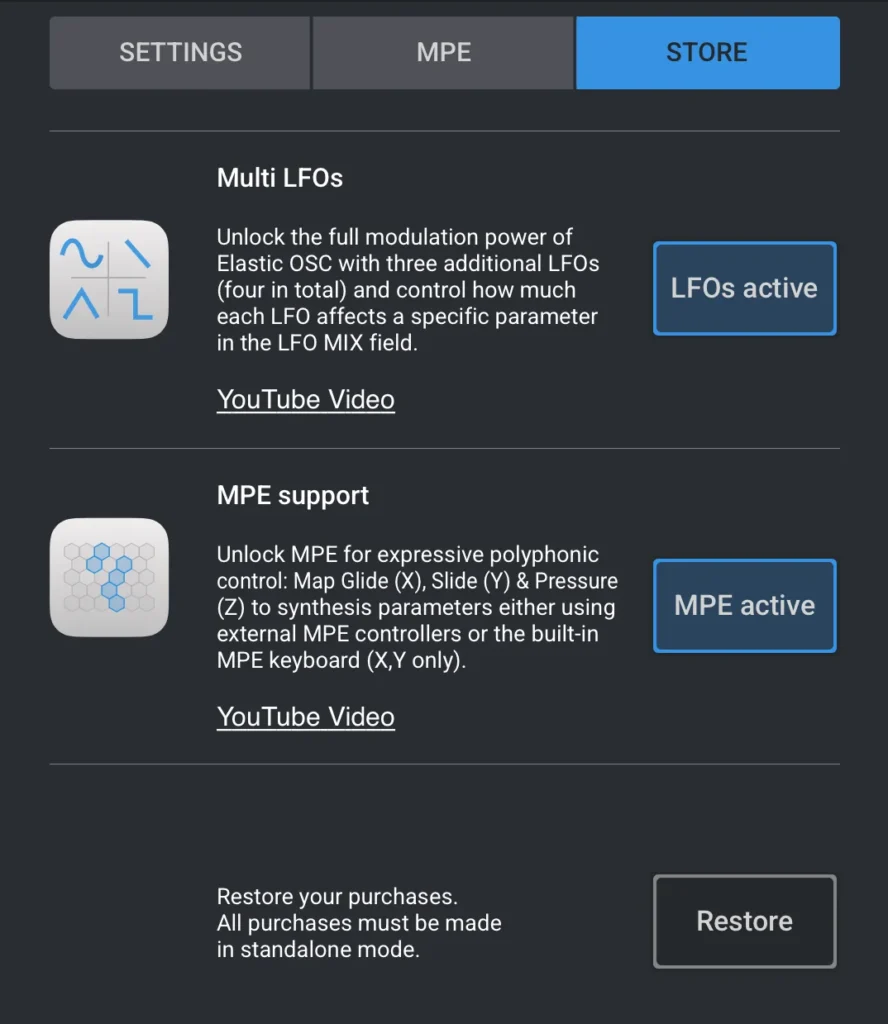
Multi LFOs unlocks three additional LFOs, four in total, and the LFO Mix view. See LFO Mixer.
MPE support unlocks the Glide, Slide and Press mapping screen described in MPE. This is usable with both external MPE controllers as well as with the built-in MPE keyboard.
Restore recovers purchases already made on this account.
Using on a phone
The small keyboard icon at the top of the screen cycles through three layouts, trading keyboard size for space given to other controls.
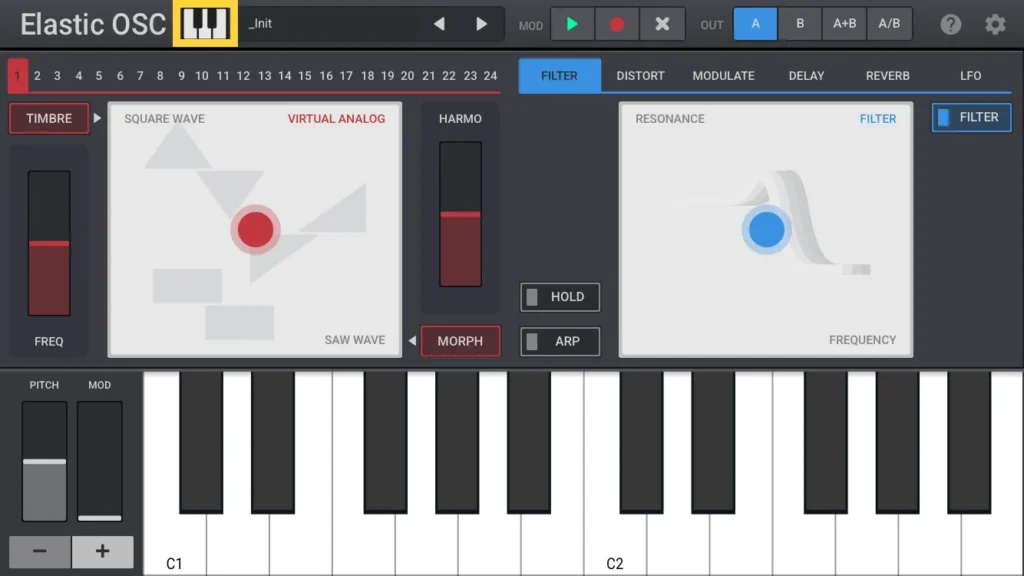
Large keys
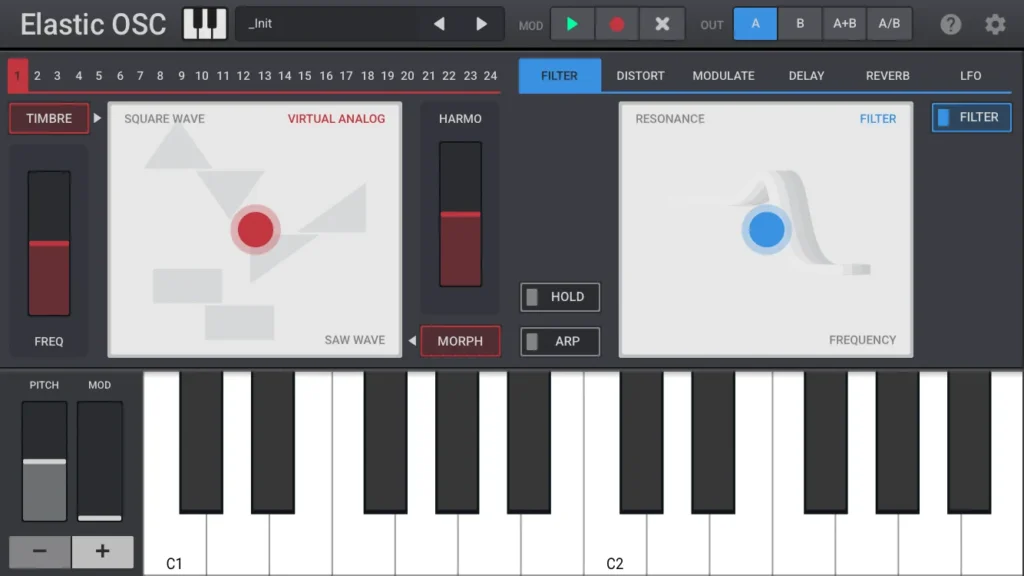
In the default phone layout, the full keyboard is shown at the bottom of the screen.
Small keys
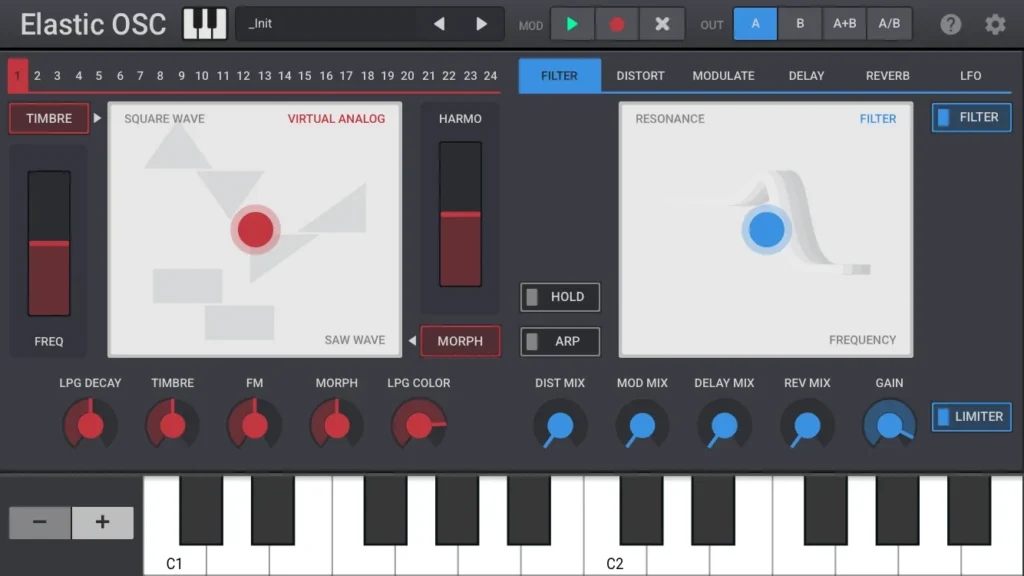
In the second phone layout, the keyboard is reduced in size, making room above it for the low-pass gate and effects mix knobs, so they can be adjusted while playing.
Hidden keys
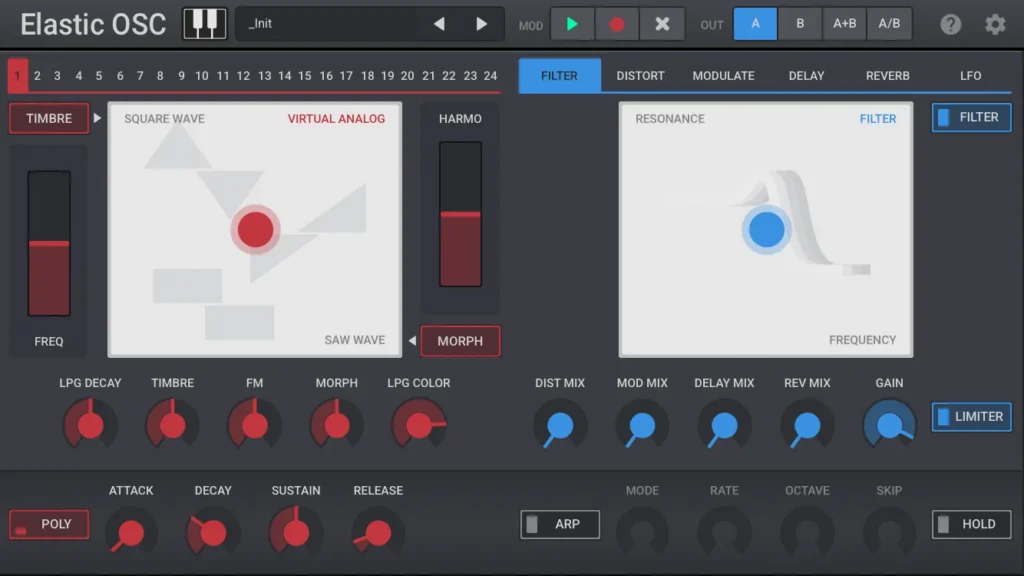
In the third phone layout, the keyboard is hidden entirely. Voice options, envelopes, and the arpeggiator are visible.
Elastic OSC
Designed to play.
An 8-voice polyphonic macro-oscillator built on Mutable Instruments Plaits.
- 24Engines
- 8Voices
- 4LFOs